When routes fail to display on the driver’s mobile device, it can be quite frustrating and may hinder operations. Usually, this problem arises from route assignment, synchronization issues, connectivity problems, or settings. This guide highlights the most frequent causes and provides detailed steps to efficiently resolve these issues.
1. Route Not Assigned to the Driver
The route is present in the planning dashboard but hasn’t been assigned to the appropriate driver.
- **Solution:** Access the route in the planning dashboard and confirm that a driver is assigned. Make sure to select the correct driver profile, save any modifications, and instruct the driver to refresh the app or log out and back in.
2. Mobile Workflow Settings Restrictions.
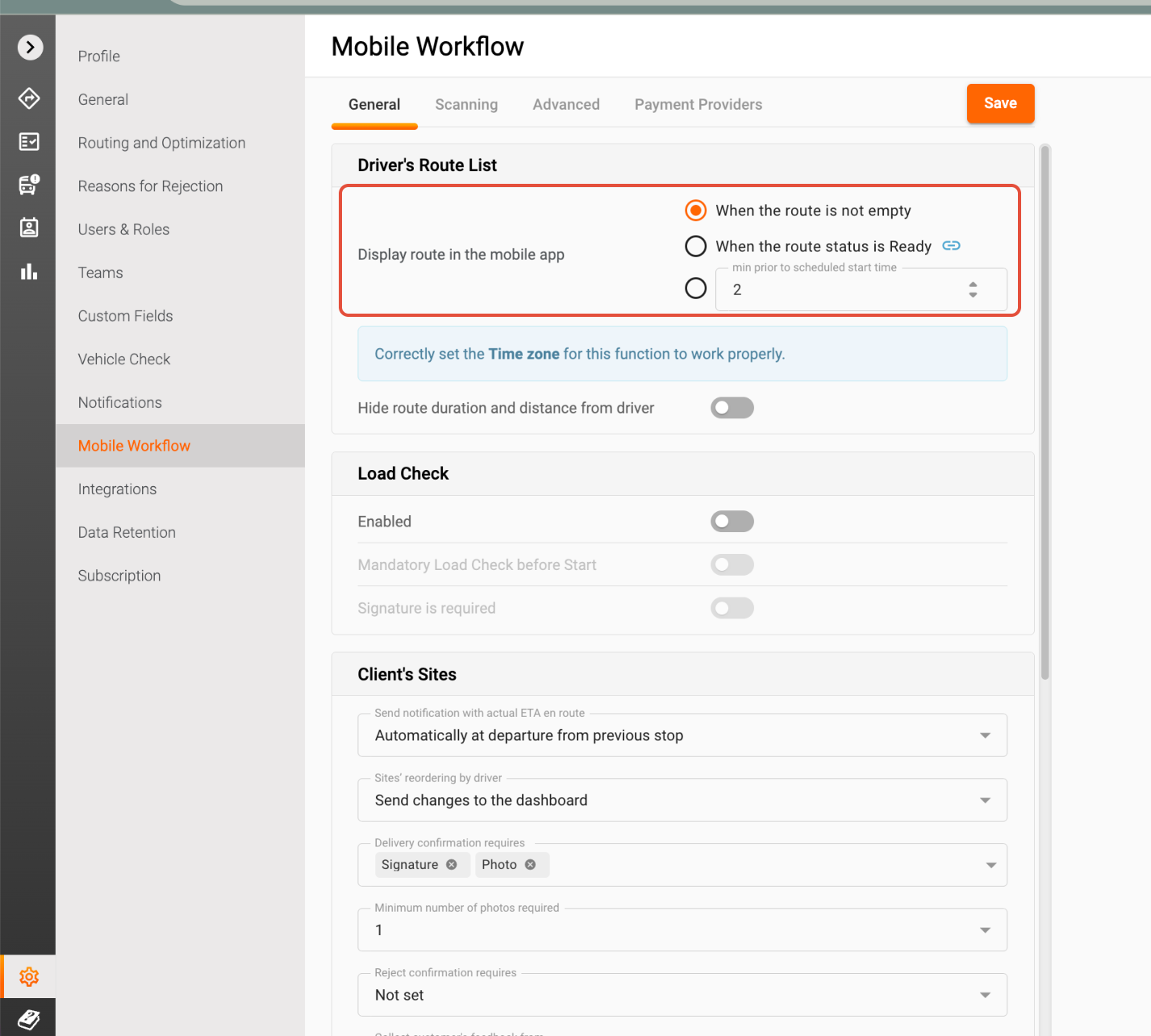
Track-POD provides three options for when the route can be accessible to the driver.
- when the route is not empty - this means it becomes available to the driver as soon as it has been created/assigned
- when the route status is "Ready" - the route must be marked as "ready" for it to show up on the mobile app
- setting a time frame in minutes before the route start - the route will appear when this time period approaches (Incorrect time settings on the device can hinder the route display).
4. Weak Internet Connection
The device may be experiencing unstable or no internet connectivity.
- **Solution:** Verify that mobile data is turned on or that there is a stable Wi-Fi connection. Instruct the driver to refresh the app, switch airplane mode on and off, restart the device, and reopen the application after reconnecting.
5. App Synchronization Problems
The mobile application may not have synchronized correctly with the server.
- **Solution:** Pull down to refresh the route list, completely close and reopen the application, log out and back in, and ensure the most recent version of the app is installed.
9. Outdated Mobile App Version
Older versions of the app may encounter synchronization or display problems.
- **Solution:** Open the App Store or Google Play Store, update the driver application to the latest version, and restart the app after the update.
By adhering to these troubleshooting steps, drivers can promptly address issues related to routes not appearing on their devices, thereby facilitating a smoother operational process. Should problems continue, kindly contact our customer support team for additional help.
Was this article helpful?
That’s Great!
Thank you for your feedback
Sorry! We couldn't be helpful
Thank you for your feedback
Feedback sent
We appreciate your effort and will try to fix the article