Scanning barcodes is an essential feature that helps ensure the correct orders are loaded from the warehouse or delivered to customers. However, there may be instances when you encounter issues with scanning, such as damaged or missing barcodes. In these cases, you can mark an order or item as scanned to bypass the scanning process. While this option can be convenient, it is important to use it judiciously to maintain accuracy in your order management system.
Marking Orders as Scanned
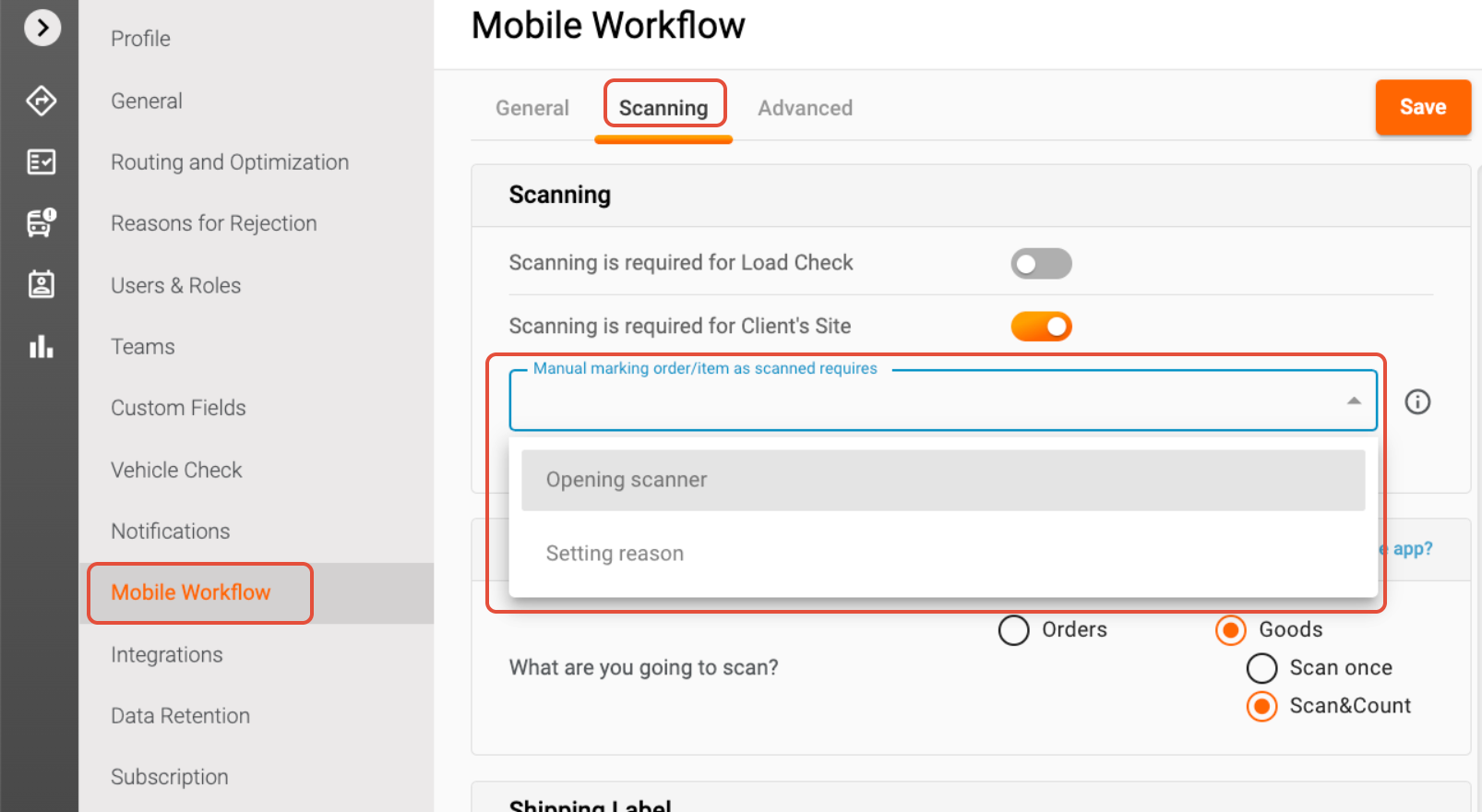
When you encounter a scanning issue, marking an order as scanned can save time and streamline the process. This feature allows you to confirm that an order has been loaded or delivered without relying solely on barcode scanning. However, to prevent misuse of this option, it is crucial to implement certain restrictions in the Mobile workflow settings -> Scanning.
Setting Up Restrictions
1. Opening scanner: This setting ensures attempt scanning before resorting to marking an order as scanned. This promotes the correct use of the scanning feature and helps maintain the integrity of your order management process.
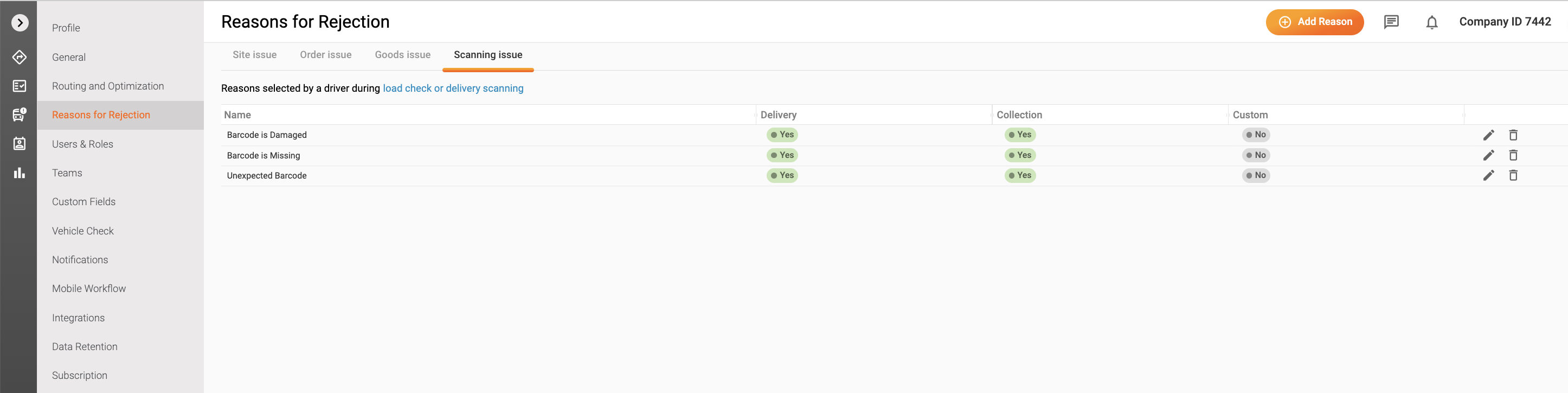
2. Setting reason: This option allows dispatchers to specify a reason for any scanning failures. By requiring drivers to select a reason, you create accountability and provide valuable data that can help identify recurring issues with barcodes. This information can be instrumental in addressing underlying problems, such as poor printing quality or damaged labels. The list of scanning issues is set up in Settings ->Reasons for rejection -> Scanning issue (there are three most common reasons created by default).
Conclusion
In summary, while marking orders as scanned can be a helpful workaround for scanning issues, it is essential to implement restrictions that encourage proper use of the scanning feature. By opening a scanner and requiring a failure reason, you can maintain the accuracy and reliability of your order management system. If you have any further questions or need assistance, please feel free to reach out to our customer support team. We are here to help!
Was this article helpful?
That’s Great!
Thank you for your feedback
Sorry! We couldn't be helpful
Thank you for your feedback
Feedback sent
We appreciate your effort and will try to fix the article