In Track-POD, you have the option to inform your customers through the Track-POD mail service (notifications will be dispatched from the No Reply Track-POD sender), your personally defined SMTP, your Gmail or Microsoft Mail service.
In this article, we will provide you with instructions on how to configure notifications sent from your Gmail. This process will only take a few minutes.
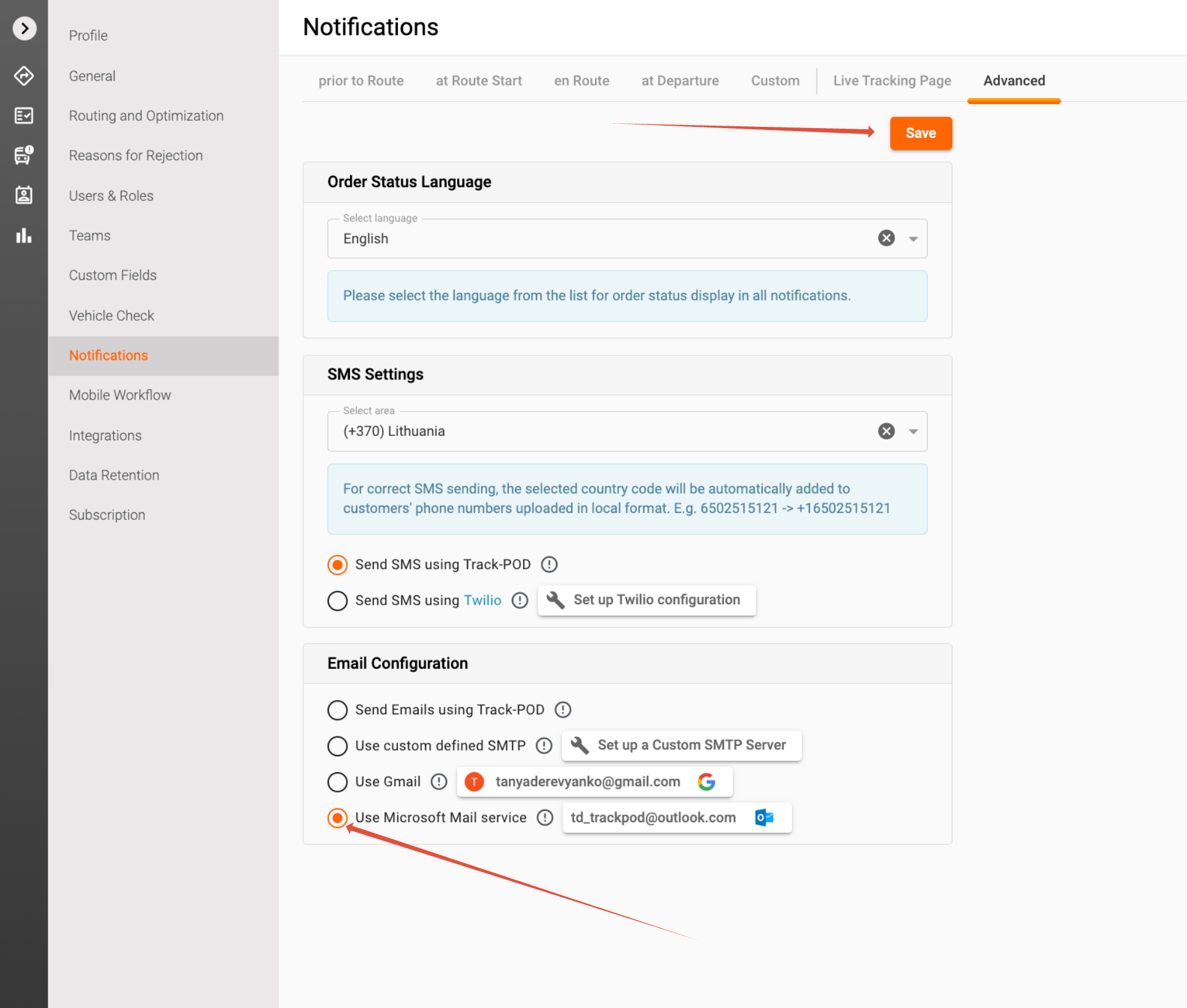
Step 1. Navigate to Settings -> Notifications -> Advanced -> Email configuration.
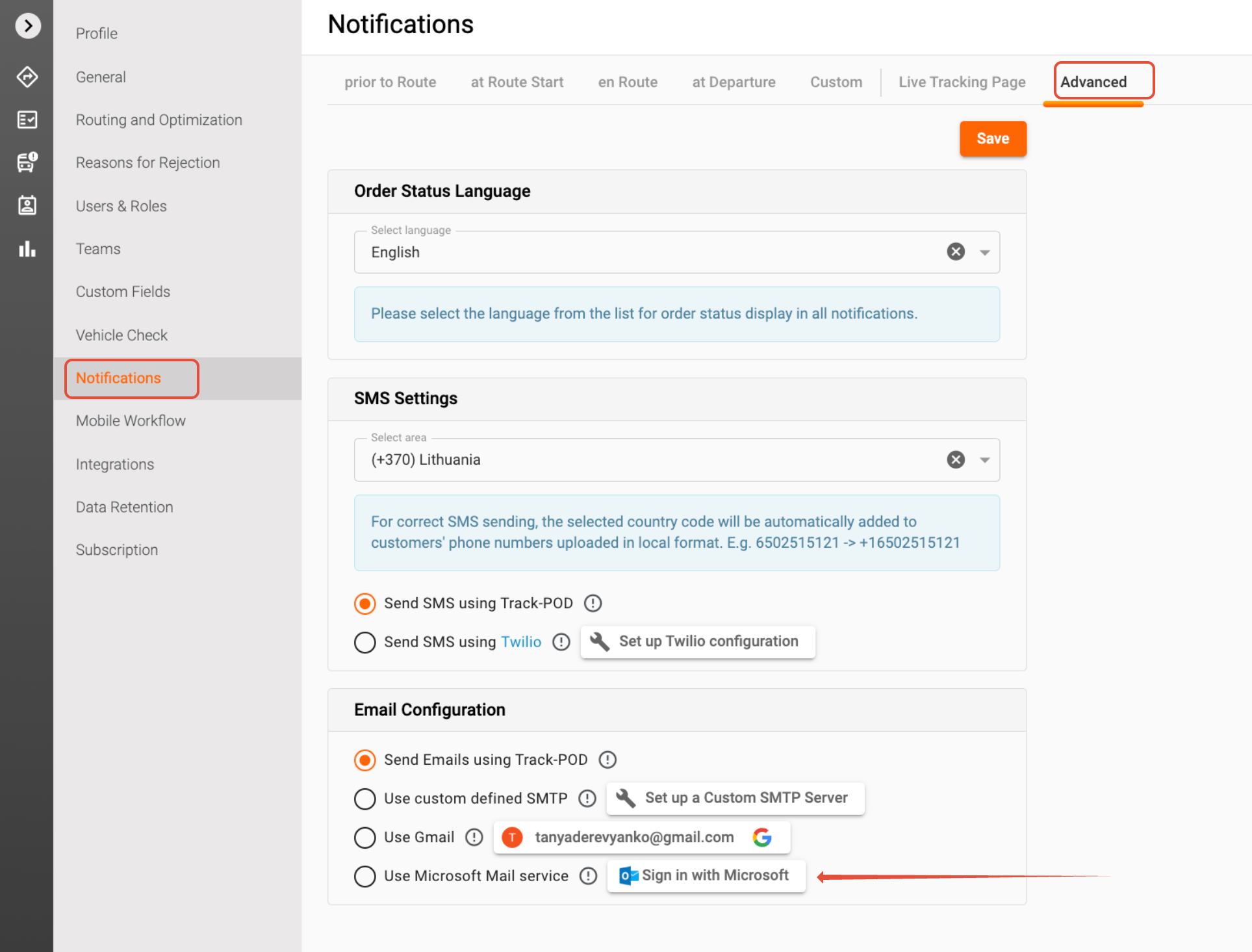
Step 2. Click Sign in with Microsoft
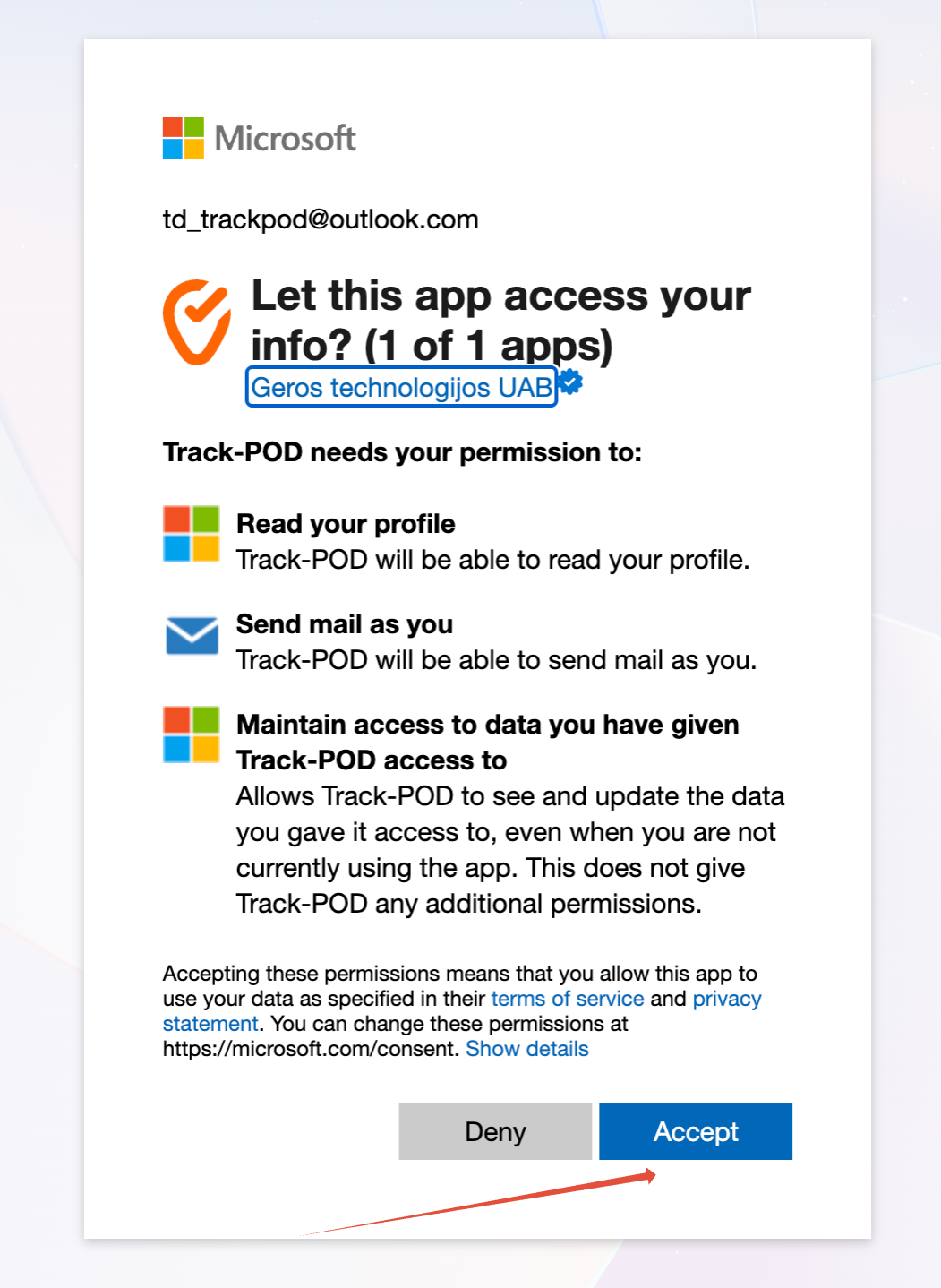
Step 3. You will be taken to the dialogue window, confirm the Track-POD permissions by clicking Accept.
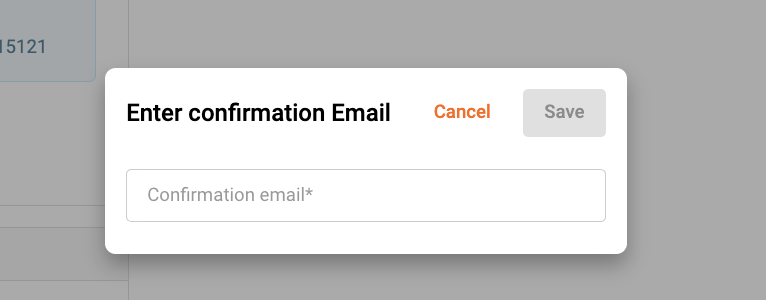
Step 4. The Email confirmation window will pop up. Enter your email to which a confirmation code will be sent.
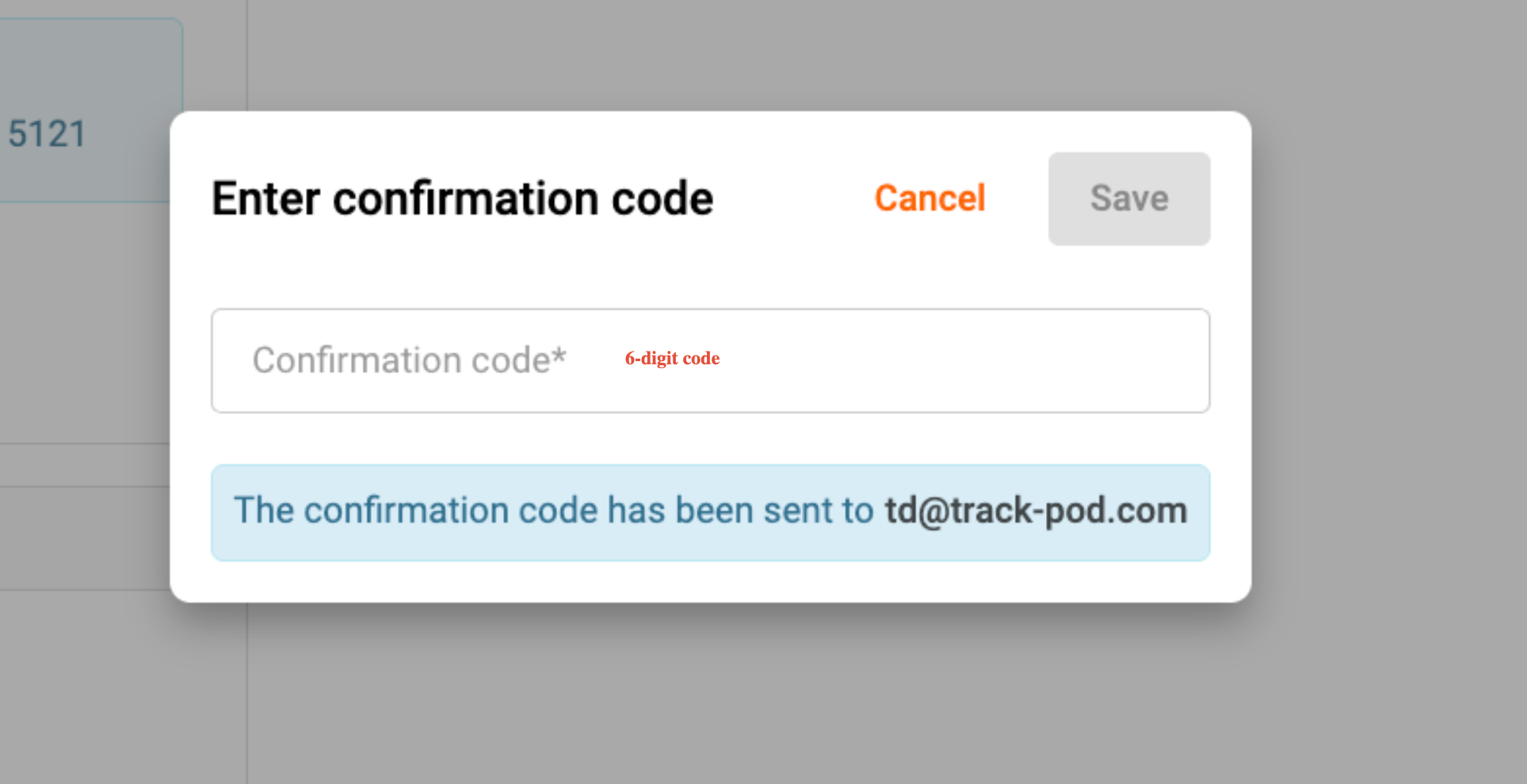
Step 5. Enter a 6-digit confirmation code you should have received to the above specified email box in the Confirmation code field. May an error pop up at this stage please check the following article.
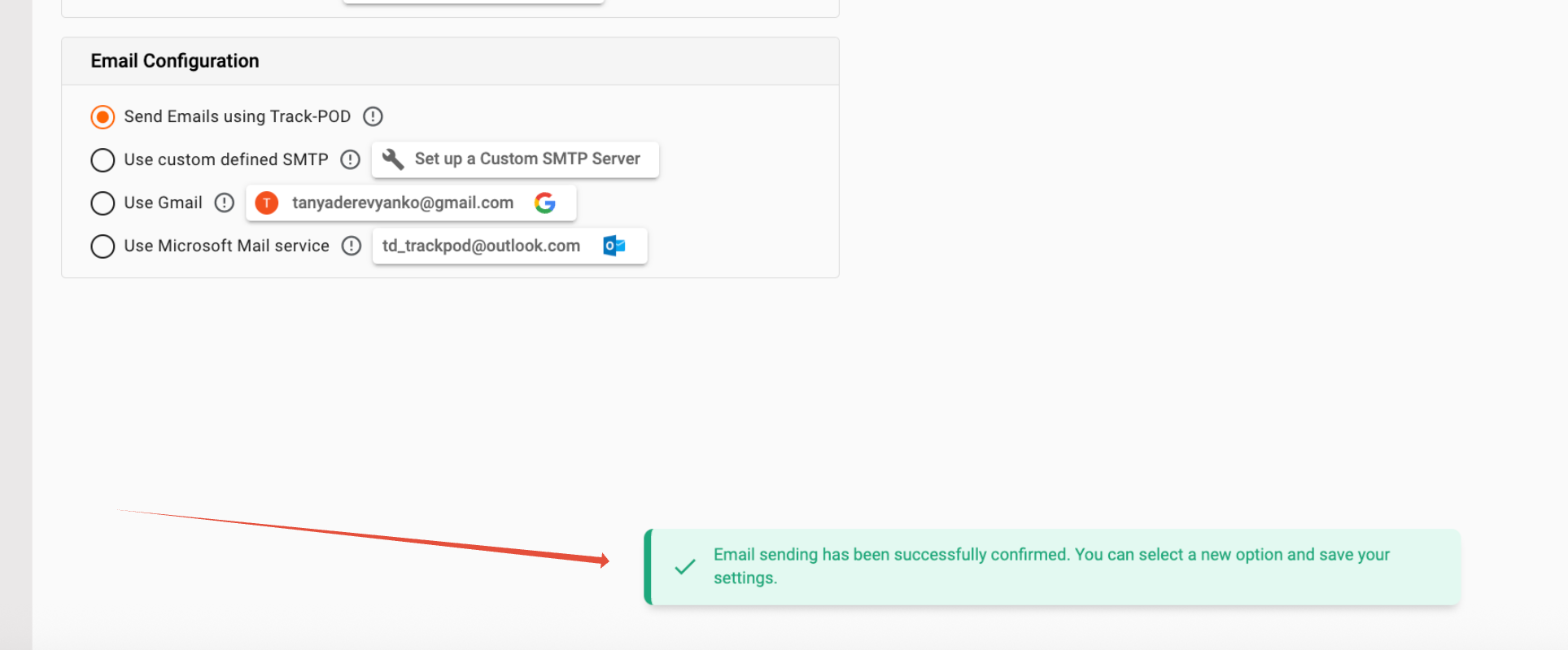
Step 6. A confirmation message pops up.
Step 7. Select the Microsoft Mail service option and click Save to start sending notifications from your Microsoft email.
Important: To log stop using your Microsoft Mail service you need to log out using the following link
https://login.microsoftonline.com/common/oauth2/v2.0/logout
May you have any troubles connecting your Microsoft 365 SMTP do not hesitate to reach out to support@track-pod.com
Was this article helpful?
That’s Great!
Thank you for your feedback
Sorry! We couldn't be helpful
Thank you for your feedback
Feedback sent
We appreciate your effort and will try to fix the article