The Prior to Route Notification feature allows you to create email and SMS notifications to keep your customers informed prior to their scheduled deliveries. This proactive communication enhances customer satisfaction and helps manage expectations effectively.
To Set Up Prior to Route Notifications:
Step 1: Configure Notification Settings
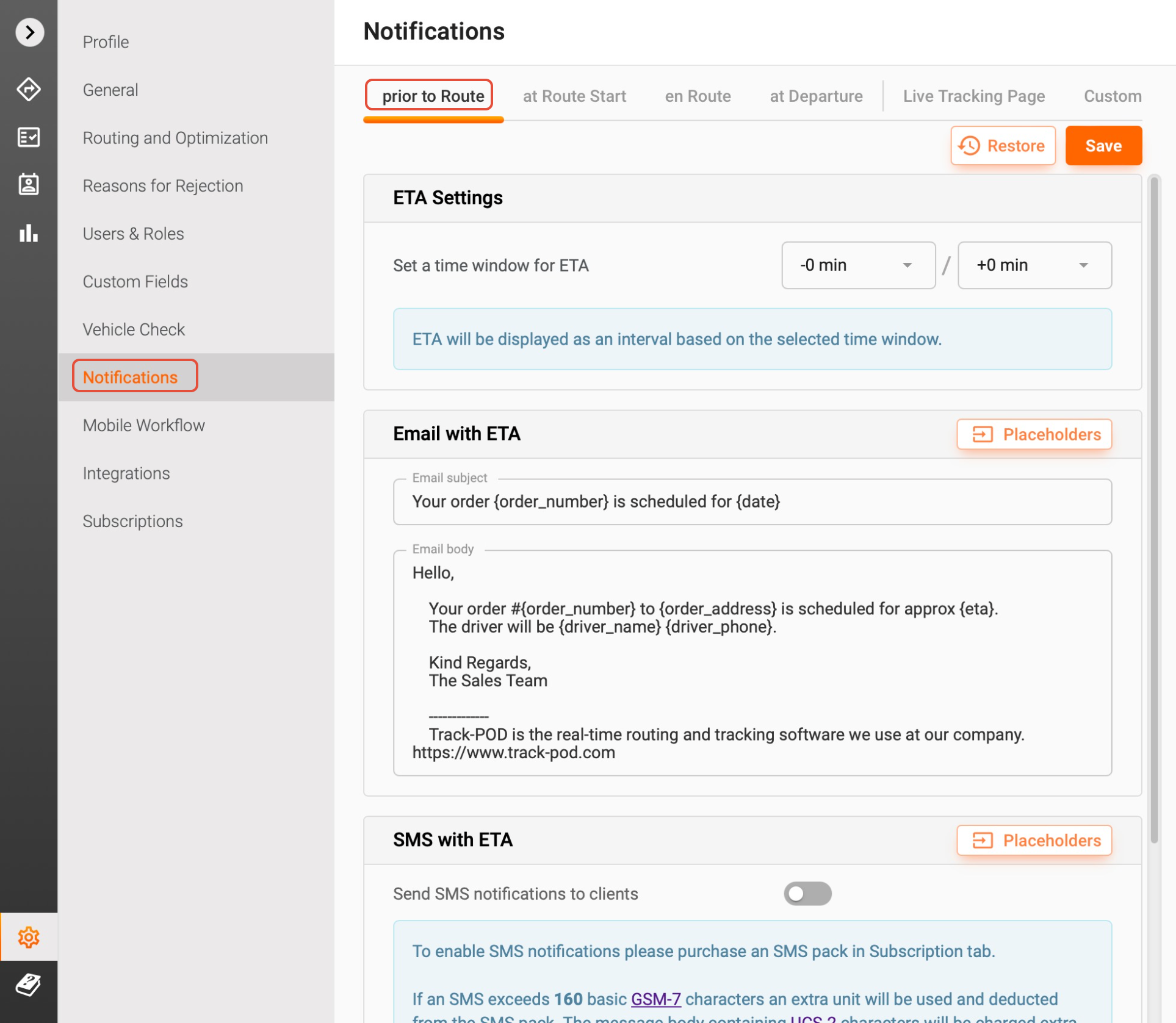
1. Navigate to the Settings tab, then select Notifications followed by Prior to Route.
2. In the Email with ETA settings, create a notification template by entering a subject and message text. Once you're satisfied with your template, click Save. Feel free to use any of the placeholders available.
3. If you wish to send SMS notifications, ensure the SMS with ETA box is checked. Create a concise notification template and click Save.
4. You can also set a time window featured in the notifications based on the scheduled ETA. To do this, select the desired time interval in the Set a time window for ETA section.
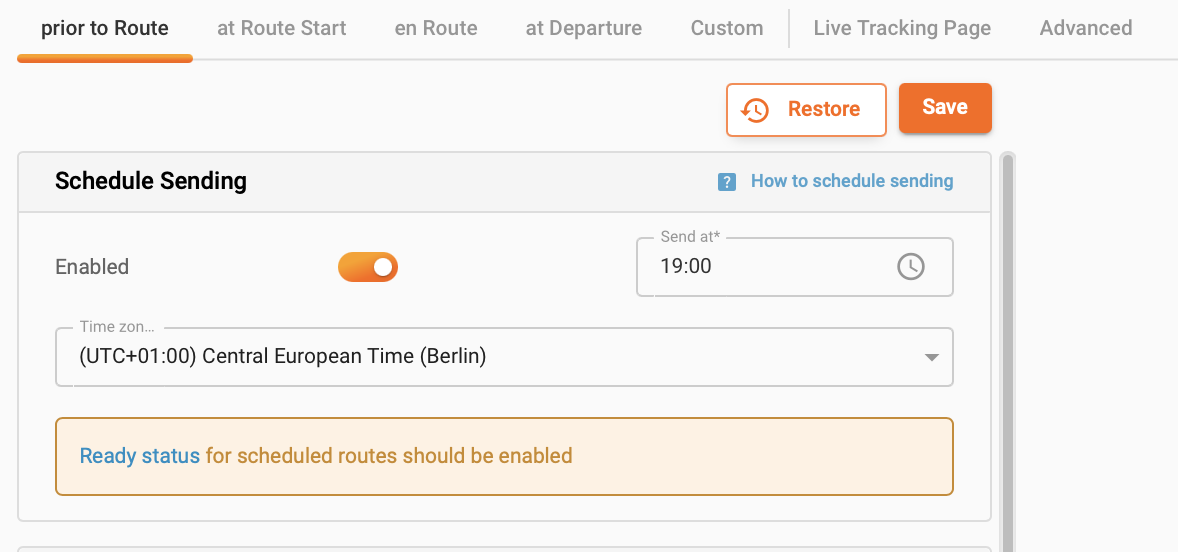
For users with an Ultimate subscription, it is also possible to automate the sending process by specifying the time and choosing the time zone. The status must be set to ready for this action to be initiated.
Step 2: Send Notifications
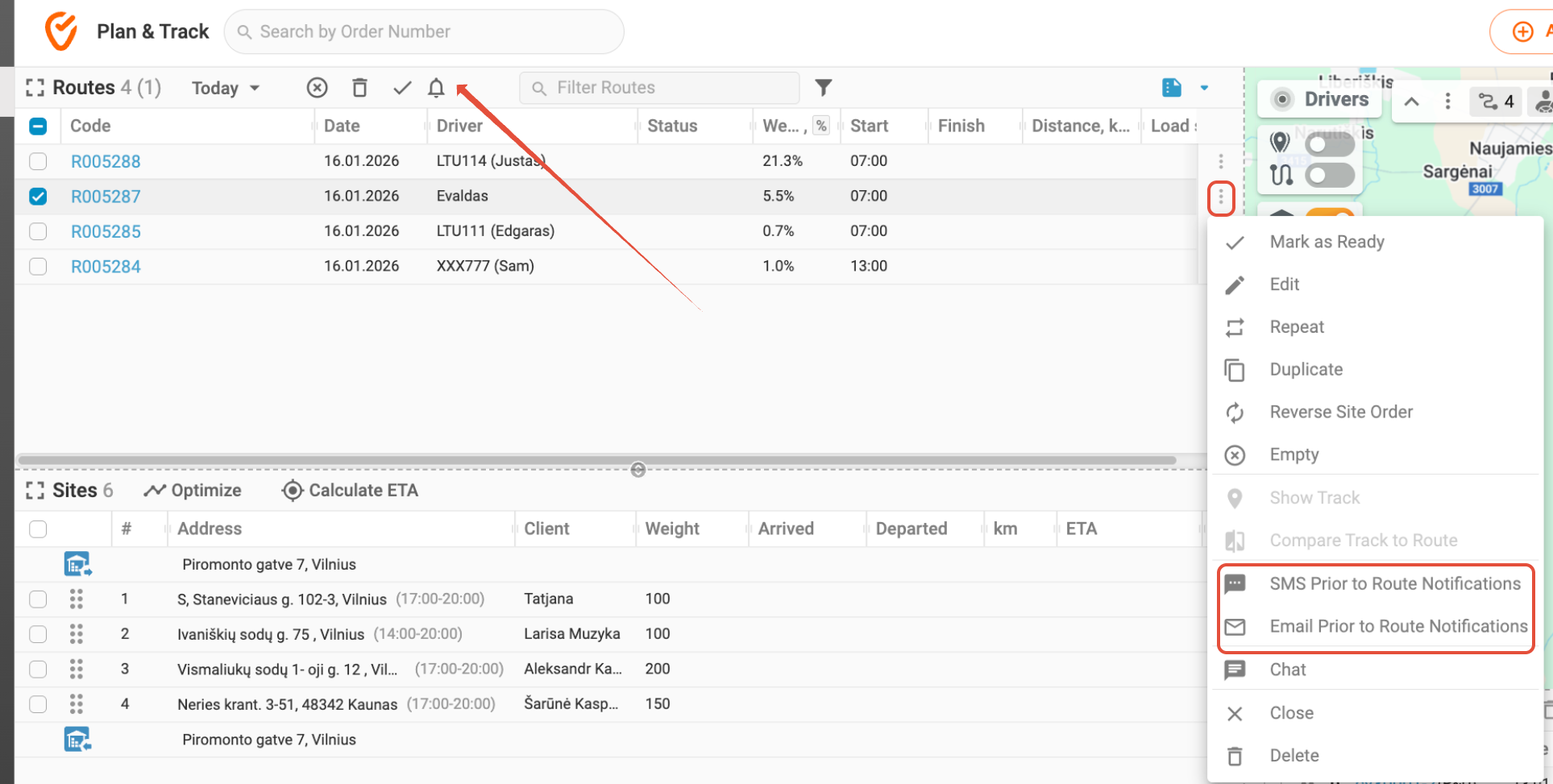
1. Return to the Plan and Track tab, select the route you want to notify customers about, and open the Actions menu. Choose either SMS Prior to Route Notifications or Email Prior to Route Notifications.
2. Alternatively, you can select scheduled routes and click on the Notifications icon directly to choose whether to send SMS or Email Prior to Notifications.
Important Reminder:
If you send prior to route notifications before optimizing your route, the notification will only display the date, as the system has not yet calculated an ETA. To ensure your notifications include accurate ETA time slots, it is recommended to optimize your route first before triggering the advance notifications.
Example Notifications:
- Email Notification Example: "Dear Customer, your delivery is scheduled for [Date] between [ETA Time Slot]. Thank you for choosing us!"
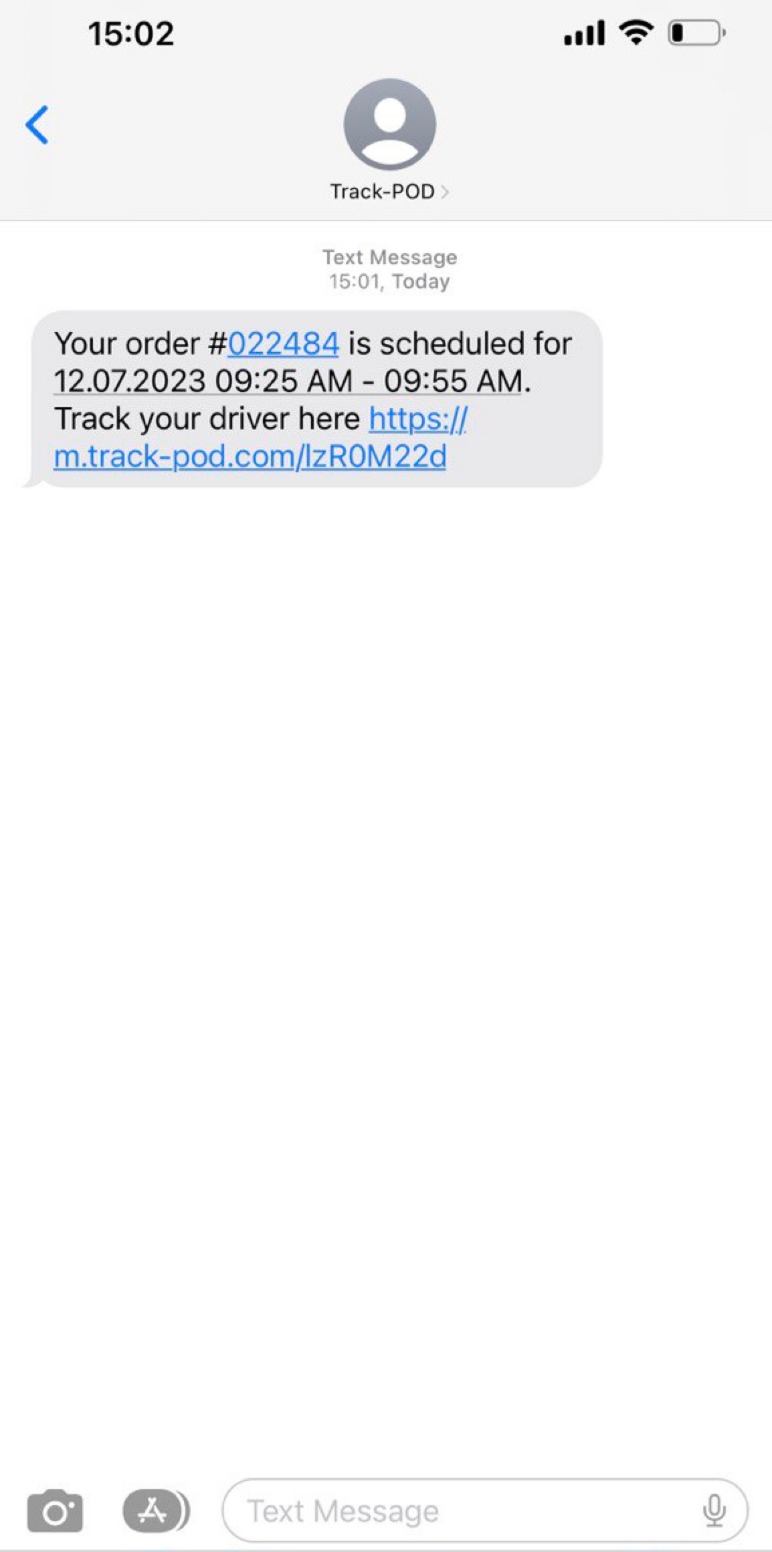
- SMS Notification Example: "Your delivery is set for [Date] between [ETA Time Slot]. We appreciate your business!"
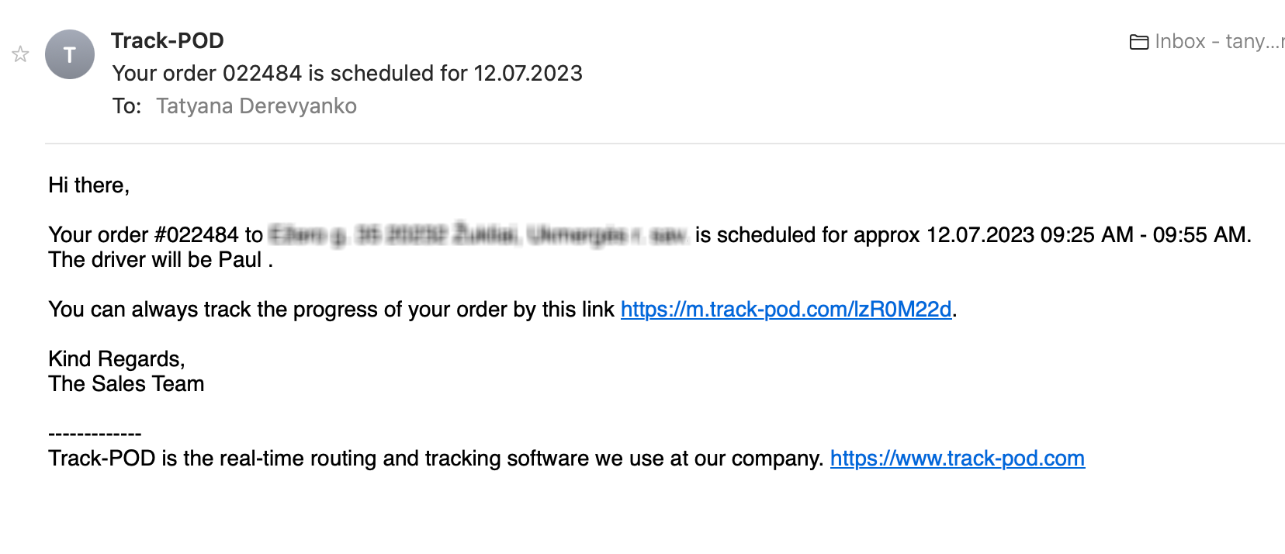
This is what your customers actually receive
Additional Note:
Please be aware that SMS notifications incur additional charges.
By following these steps, you can effectively set up advance notifications to keep your customers informed and enhance their experience with your service! If you have any further questions, feel free to reach out to our support team.
Was this article helpful?
That’s Great!
Thank you for your feedback
Sorry! We couldn't be helpful
Thank you for your feedback
Feedback sent
We appreciate your effort and will try to fix the article