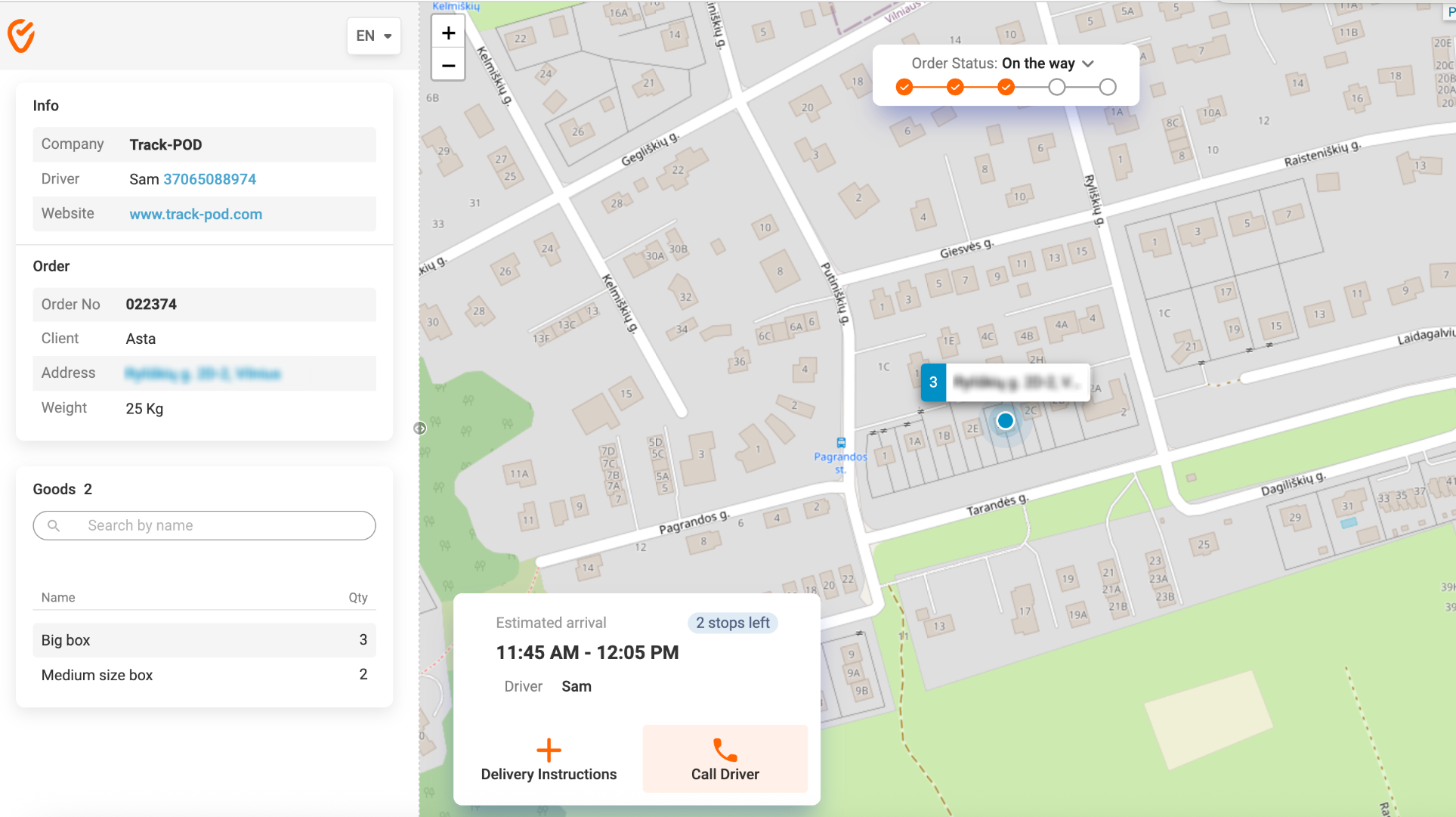
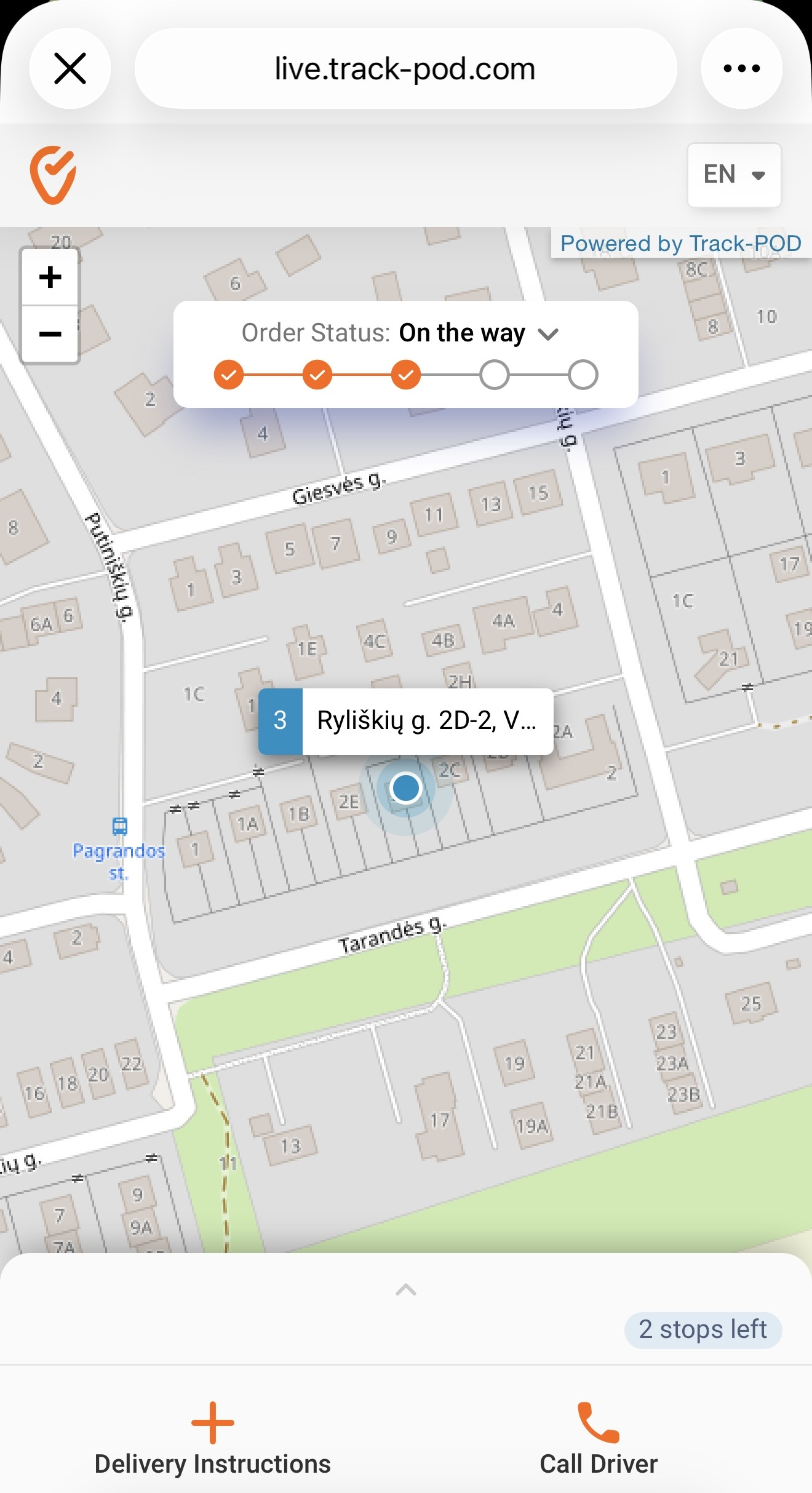
In Track-POD, keeping your customers informed about their deliveries is a breeze! You can send notifications via e-mail and SMS that include a link to the Live Tracking page, allowing your customers to track their driver’s location in real-time, contact the driver, and monitor the progress of their route. This automated message is sent out as soon as a driver taps the Start Route button in the mobile app, ensuring your customers are always in the loop.
Setting Up Live Tracking Notifications
To begin, navigate to Settings -> Notifications in your Track-POD dashboard.
First configure the Live Tracking Page
1. General Settings:
- Display Signature and Photos: Enable this to show the customer’s signature and order photos once delivery is completed. This feature updates the tracking page with order status, address, date & time, signature, and a photo taken by the driver.
- Display Client’s Place in Line: Allow customers to see hoe many stops left before the driver is heading to them. Note that changes in order sequence by the driver won’t affect the displayed information unless you restrict this in the mobile workflow settings.
- Display driver's location only to the next client: Driver's location will only be displayed to the next client based on the route sequence or En Route notifications sent by driver.
- Display the Call Button: Enable this option so customers can call the driver directly from the Live Tracking page.
- Display Driver's Name: Choose whether to keep the driver anonymous or allow customers to see their name.
- Display Driver's Comments: with this option On your customers will be able to check comments left by driver.
- Display Download ePOD Button: This allows customers to download the ePOD PDF directly from the tracking page.
- Display Goods Info: Enable this to show detailed information about the goods in a dedicated tab.
- Display Order Status Timeline: Customers can view the progress of their order as a timeline.
- Enable Delivery Instructions: This lets customers leave specific delivery instructions, which will be visible to both the dispatcher and the driver.
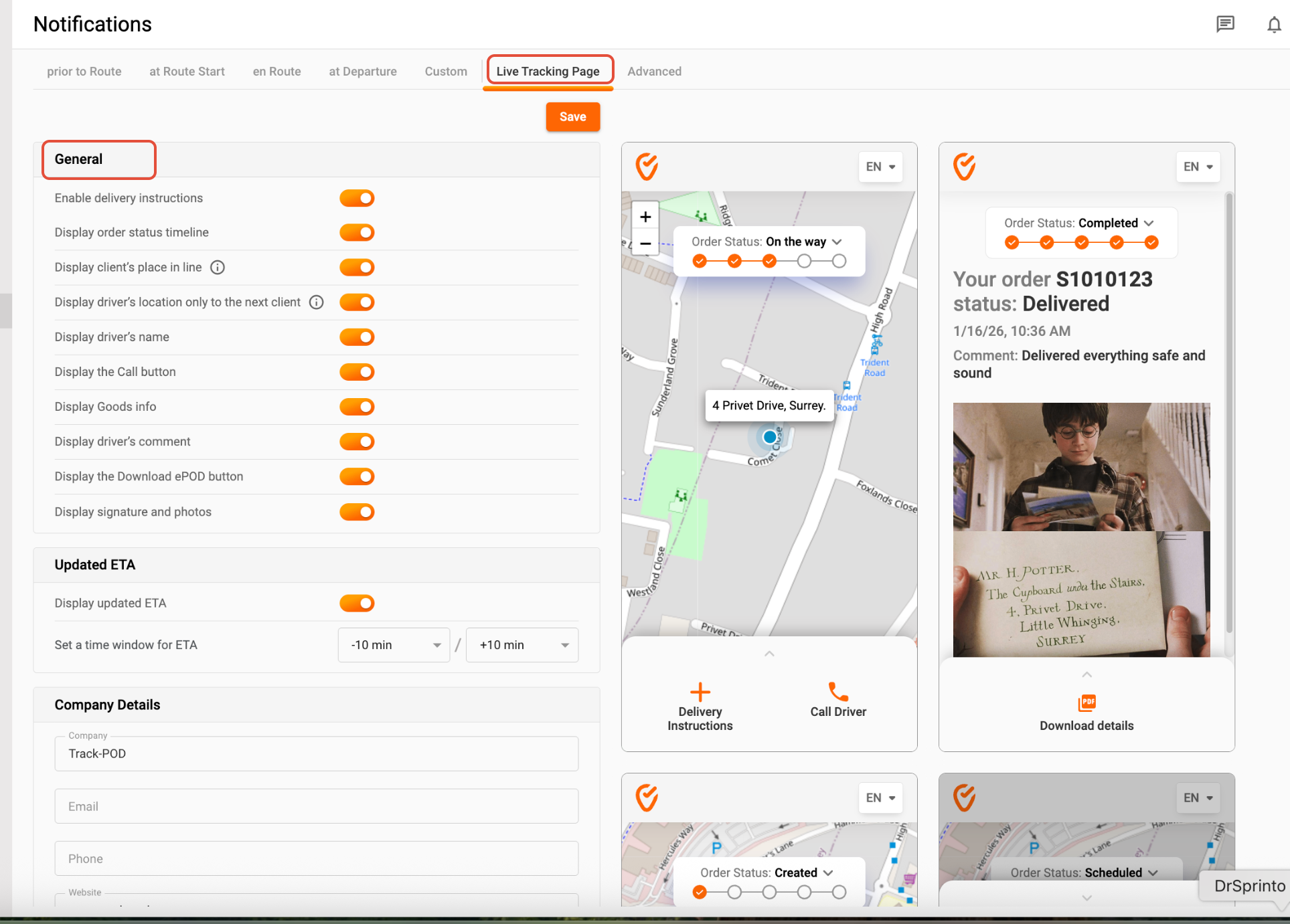
All modifications you make on the Live tracking page setup will be showcased on the mock-up screens located on the right side of the window.
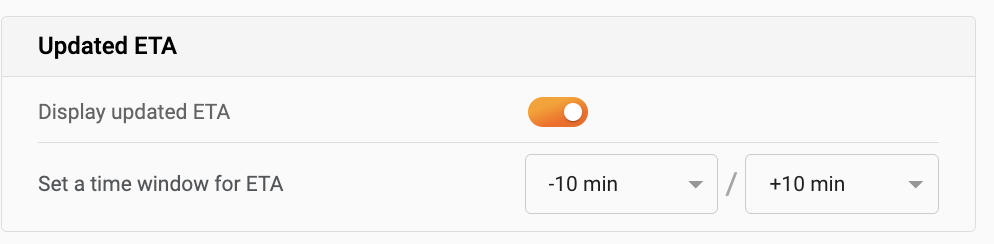
2. Updated ETA Settings:
- For Advanced Plus, Ultimate, and Order Pack, as well as Enterprise customers, enable the Display Updated ETA option to show a dynamically updated time window for the upcoming delivery. Set a time interval for more precise tracking.
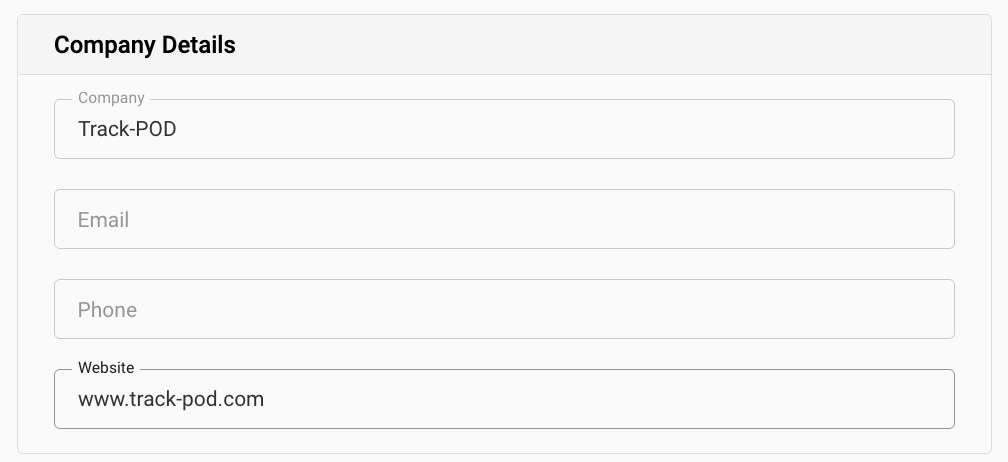
3. Company details:
Fill in your company details that will be displayed to your customer on the Live tracking page.
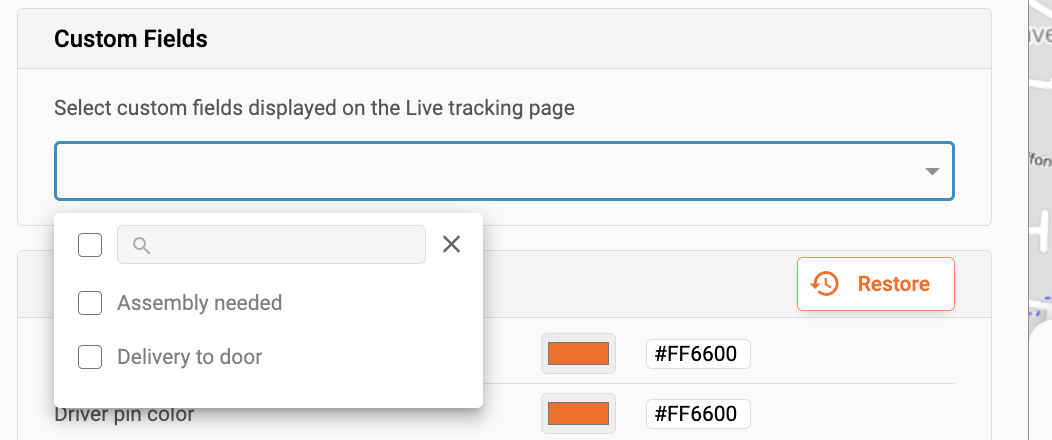
4. Custom Fields:
- Select any custom fields you wish to display on the Live Tracking page after order completion, providing essential information without requiring the customer to download an ePOD.
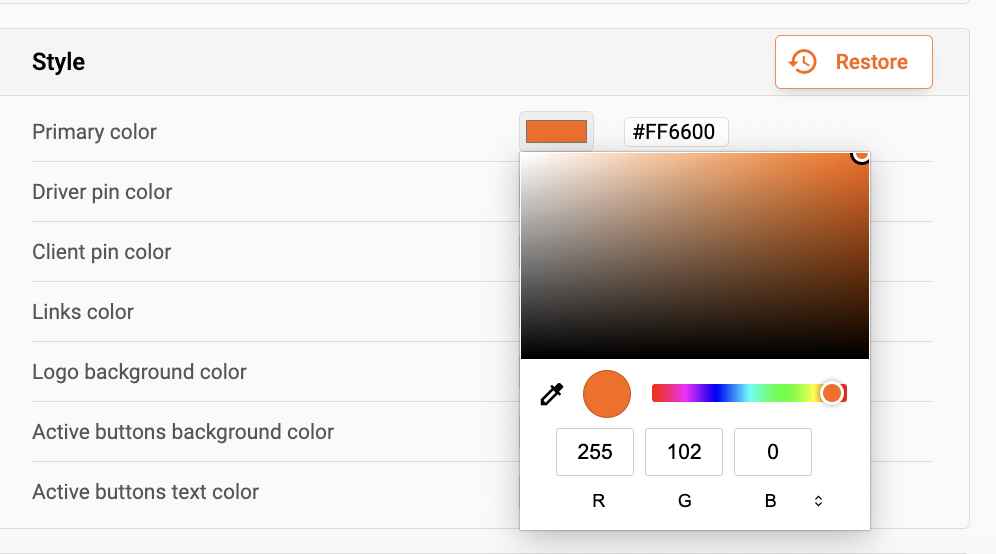
5. Style:
- Customize the color theme of the Live Tracking page to match your company’s branding. You can change colors for driver and client pins, buttons, links, and backgrounds.
6. Custom Live Tracking Link:
Ultimate subscription provides the option to personalize a live tracking link to showcase your company's domain instead of a standard one. Reach out to our support at support@track-pod.com for further details.
Setting Notifications at Route Start
Once your Live Tracking page is configured, you can set up notifications:
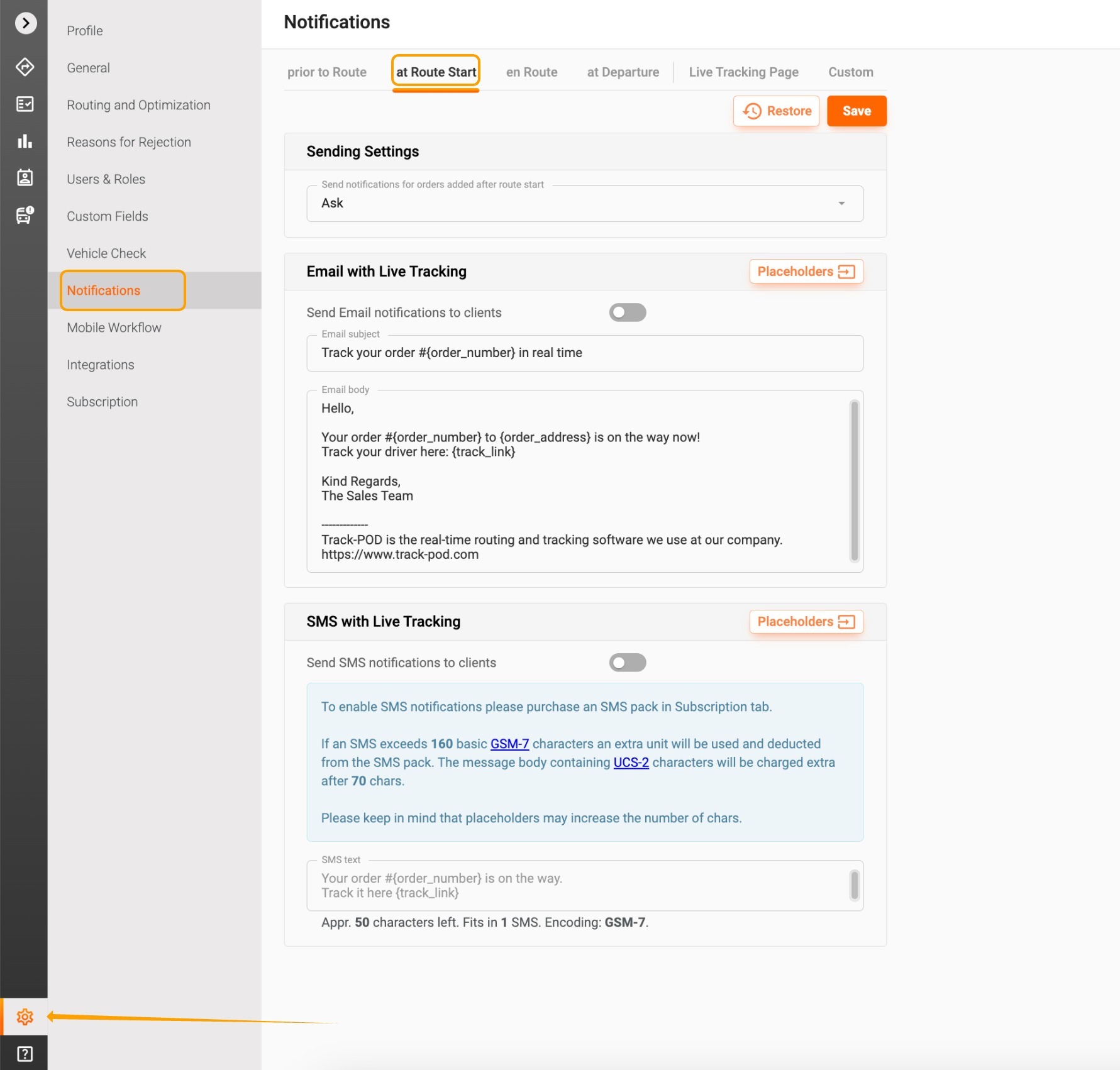
- E-mail Notifications: Toggle on Send Email Notification to Clients and customize the email body. Use placeholders to include detailed information for your customers. When a driver starts a route, an email with a tracking link and contact info will be sent to the client.
- SMS Notifications: Toggle on Send SMS Notifications to Clients. Customize the message body using template tags. Note that SMS notifications incur additional charges.
Final Steps
Don’t forget to click Save after completing your setup. Once a driver starts their route, customers with provided phone numbers and email addresses will receive SMS or email notifications, allowing them to track their driver in real-time.
Live tracking links enhance customer satisfaction and reduce the number of inquiries to your office. If you have any questions, feel free to reach out to our Support team at support@track-pod.com. Happy tracking!
Was this article helpful?
That’s Great!
Thank you for your feedback
Sorry! We couldn't be helpful
Thank you for your feedback
Feedback sent
We appreciate your effort and will try to fix the article