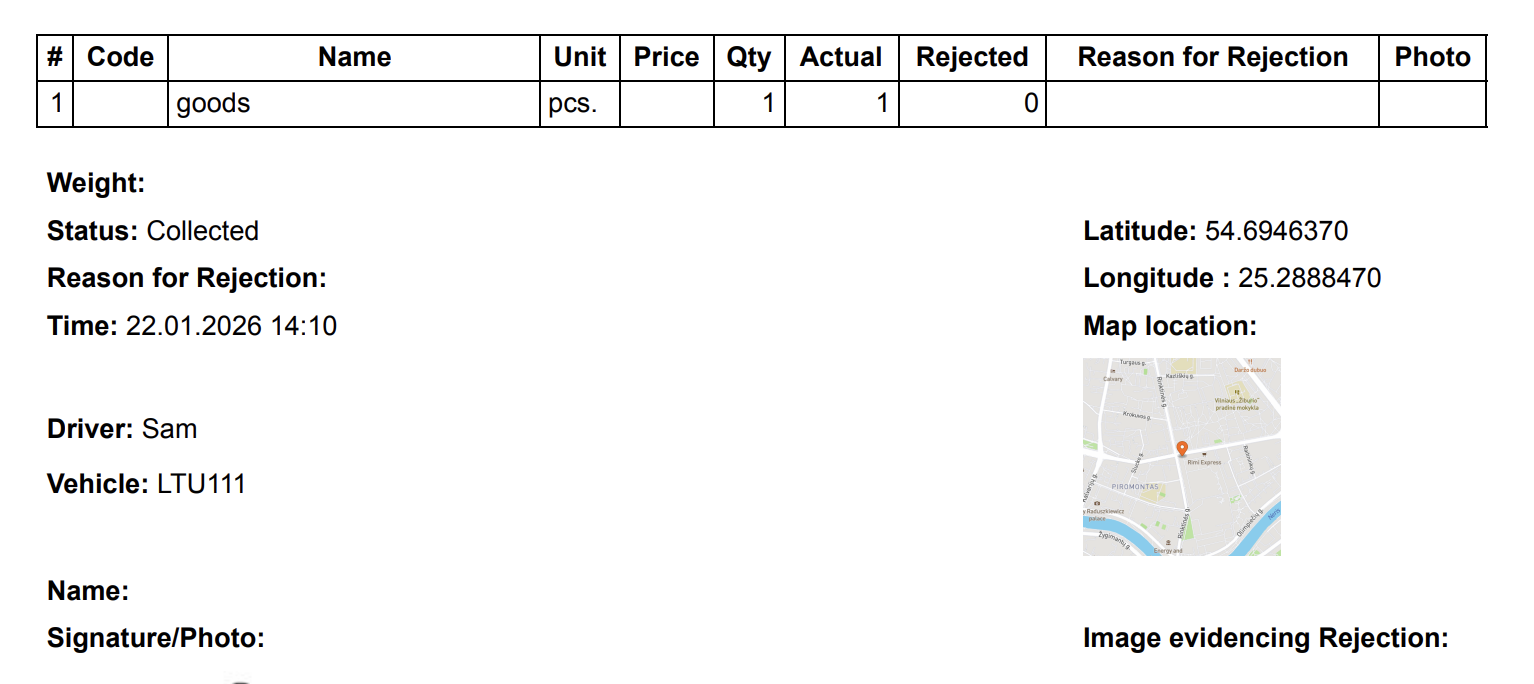
By default, the map stamp included in the ePOD (Electronic Proof of Delivery) PDF template is designed to be quite large to ensure optimal visibility. However, if you find that the size is too large for your needs, you can easily adjust it by following the steps outlined below.
Step-by-Step Instructions
1. Go to Settings -> Notifications -> At Departure ->Open PDF Editor
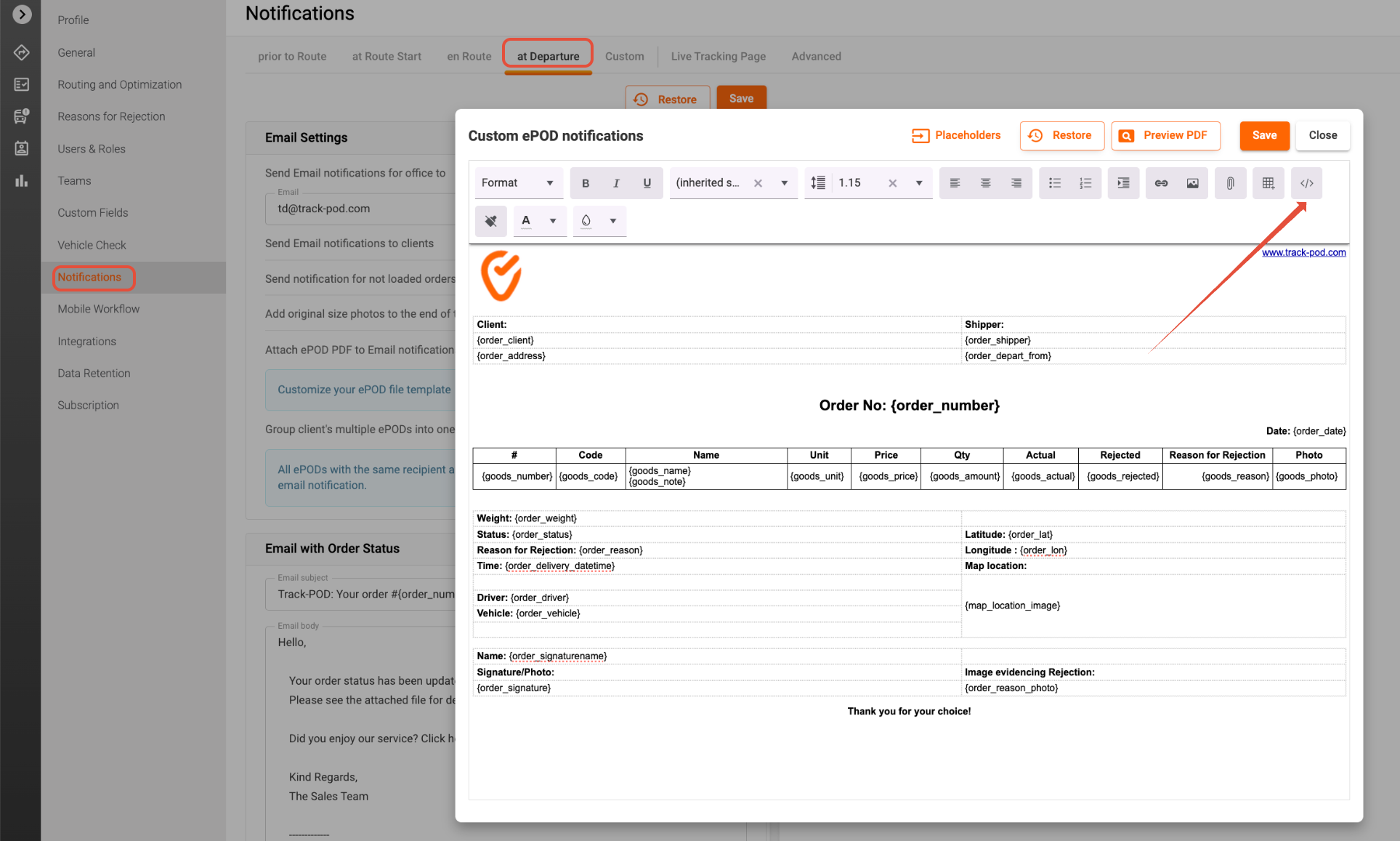
2. Access the HTML Code: Begin by locating the HTML code for your ePOD PDF template as per the screenshot above.
2. Locate the Map Stamp Tag: Within the HTML code, search for the tag `{map_location_image}`. This tag is responsible for displaying the map stamp in the PDF.
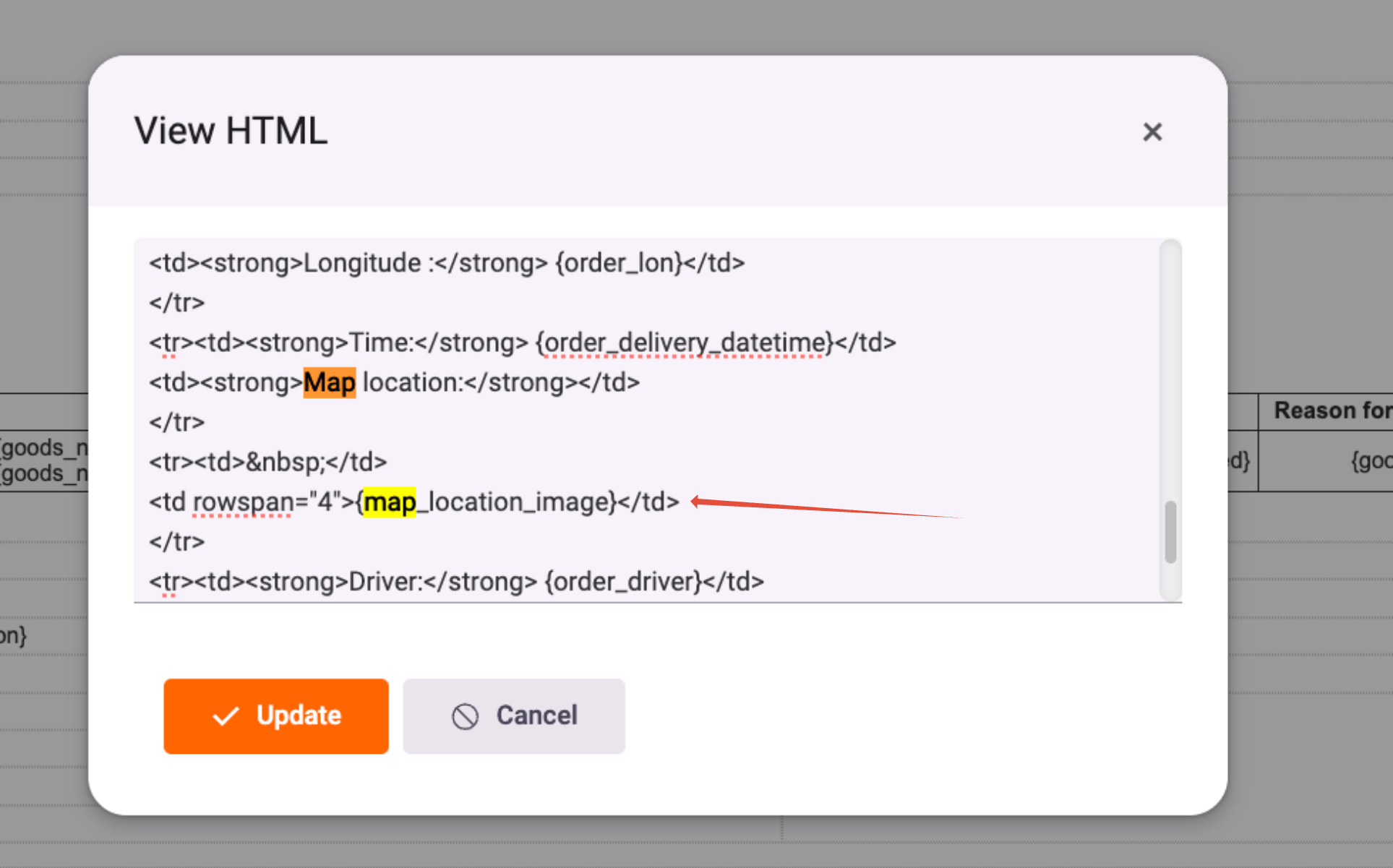
4. Replace the Tag: Once you have found the `{map_location_image}` tag, you will need to replace it with the following code:
<img src="{map_location}" style="width:50%"/>
This code snippet will adjust the width of the map stamp to 50% of its original size. You can customize this value according to your preferences.
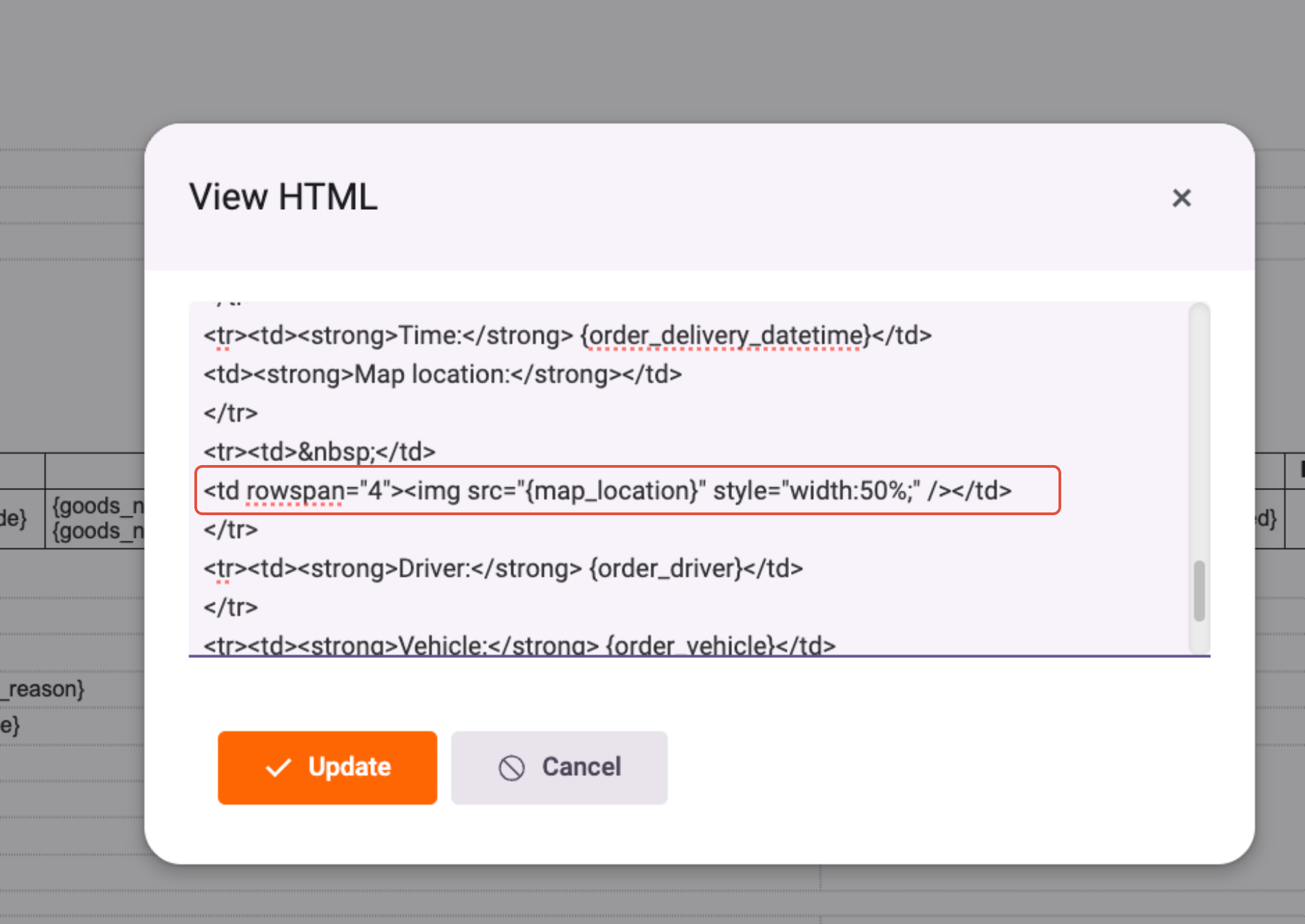
4. Customize the Size: If you would like to specify a different size, you can modify the `width` attribute. For example, you can set it to a specific pixel value like `width:100px` or use a percentage value such as `width:75%` to achieve your desired size.
5. Save Your Changes: After making the adjustments, ensure that you save your changes to the HTML code. This will apply the new size settings to the map stamp in your ePOD PDF.
Conclusion
By following these simple steps, you can easily adjust the size of the map stamp in your ePOD PDF template to better fit your needs. Whether you prefer a smaller size for aesthetic reasons or to save space, customizing the map stamp is straightforward and allows for greater flexibility in your document design. If you have any further questions or need assistance, feel free to reach out to our customer support team!
Was this article helpful?
That’s Great!
Thank you for your feedback
Sorry! We couldn't be helpful
Thank you for your feedback
Feedback sent
We appreciate your effort and will try to fix the article