Scheduling Prior to Route notifications is a powerful feature available in the Track-POD Ultimate plan and for Enterprise customers with Ultimate features. This functionality eliminates manual input and allows you to send timely notifications to your customers before their scheduled deliveries, enhancing communication and customer satisfaction. Follow the steps below to set up this feature effectively.
Step-by-Step Guide
Enable the Feature:
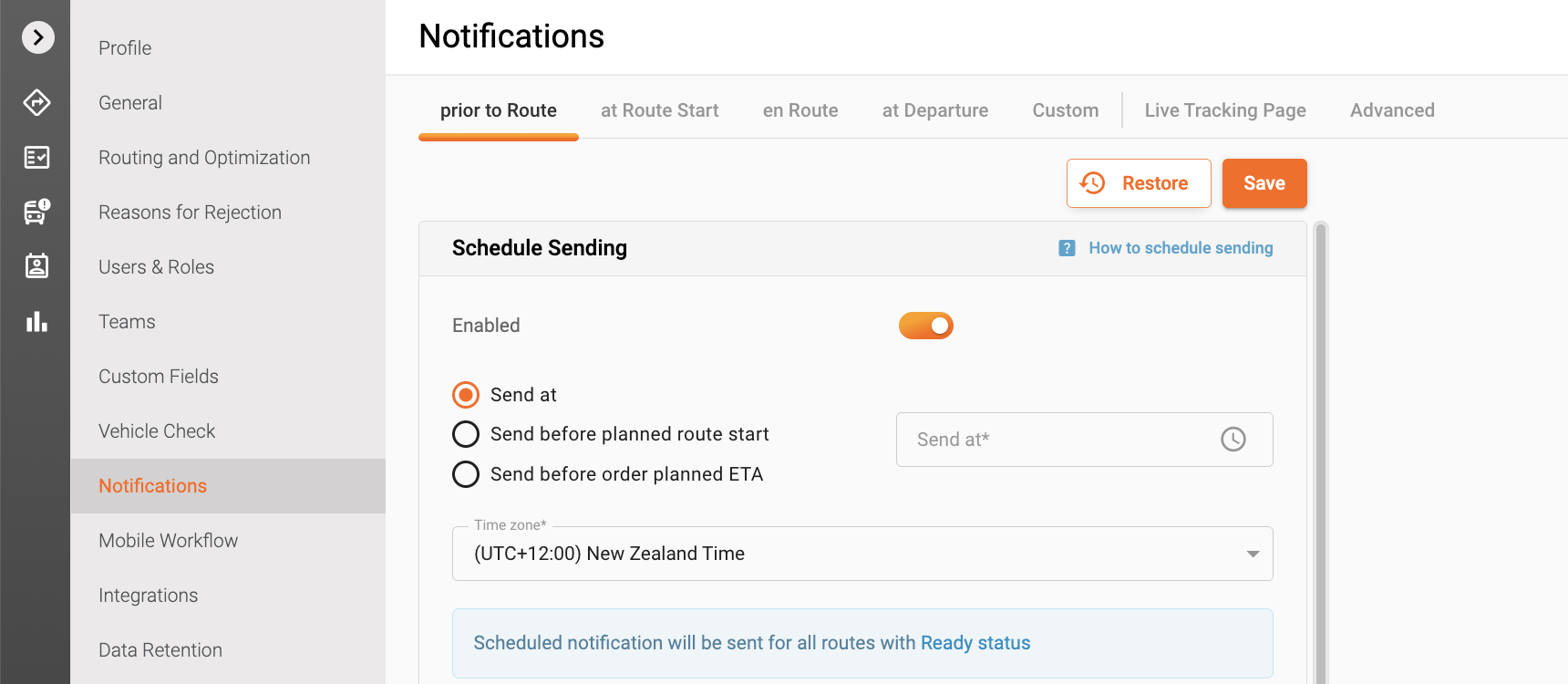
- To begin, navigate to Settings and then select Notifications. Here, you will find the option for Prior to Route notifications. Turn the toggle ON to activate this feature. Now there are three options available:
1. Send at:
In the time picker window, specify the exact time you want the notifications to be sent. It’s crucial to select the correct time zone to ensure that your customers receive notifications at the intended local time.
2. Send before planned route start
In the time picker window, indicate the time in hours that the system will utilize to schedule the notification delivery. For example, 24 hours before the route's start time.
3. Send before order planned ETA
With this option selected, Track-POD will schedule notifying your customers based on the order ETA calculated at the Optimization stage. For instance, 12 hours before ETA.
- After configuring the notification time, don’t forget to click Save to apply your changes.
Important Considerations
- Route Status: Please note that scheduling notifications will only work for routes with the status Ready. This status indicates that the orders within the route are prepared for dispatch and is assigned manually by a dispatcher or another web user. To ensure this status is available, go to Settings -> General -> Miscellaneous and enable the relevant setting.

Once the setting is enabled, a new action will appear in the Route actions drop-down menu, allowing you to manage your routes more efficiently.
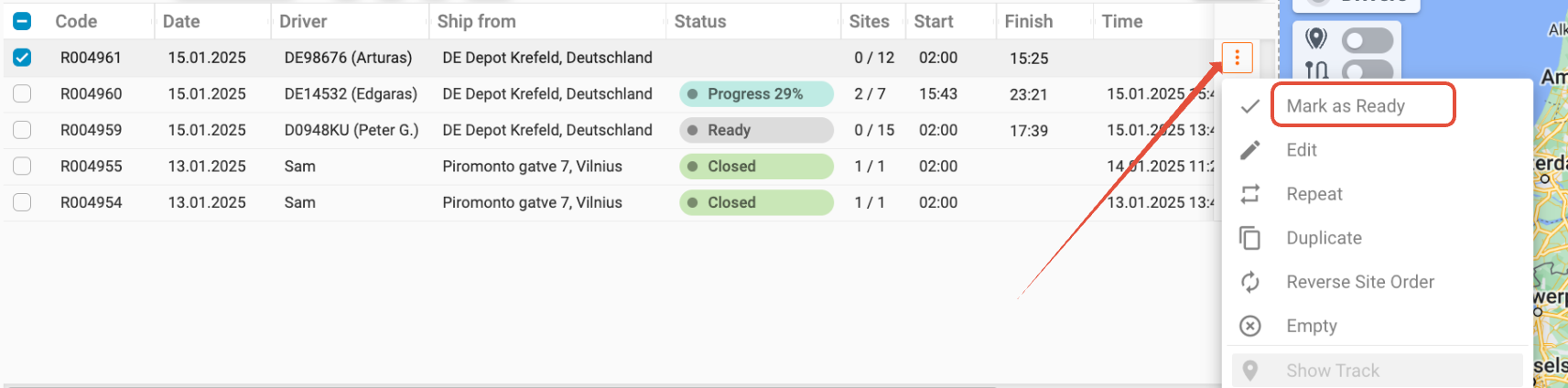

- Triggering Notifications: When your routes are marked as Ready, the system will automatically trigger the notifications at the pre-scheduled time.
Personalization
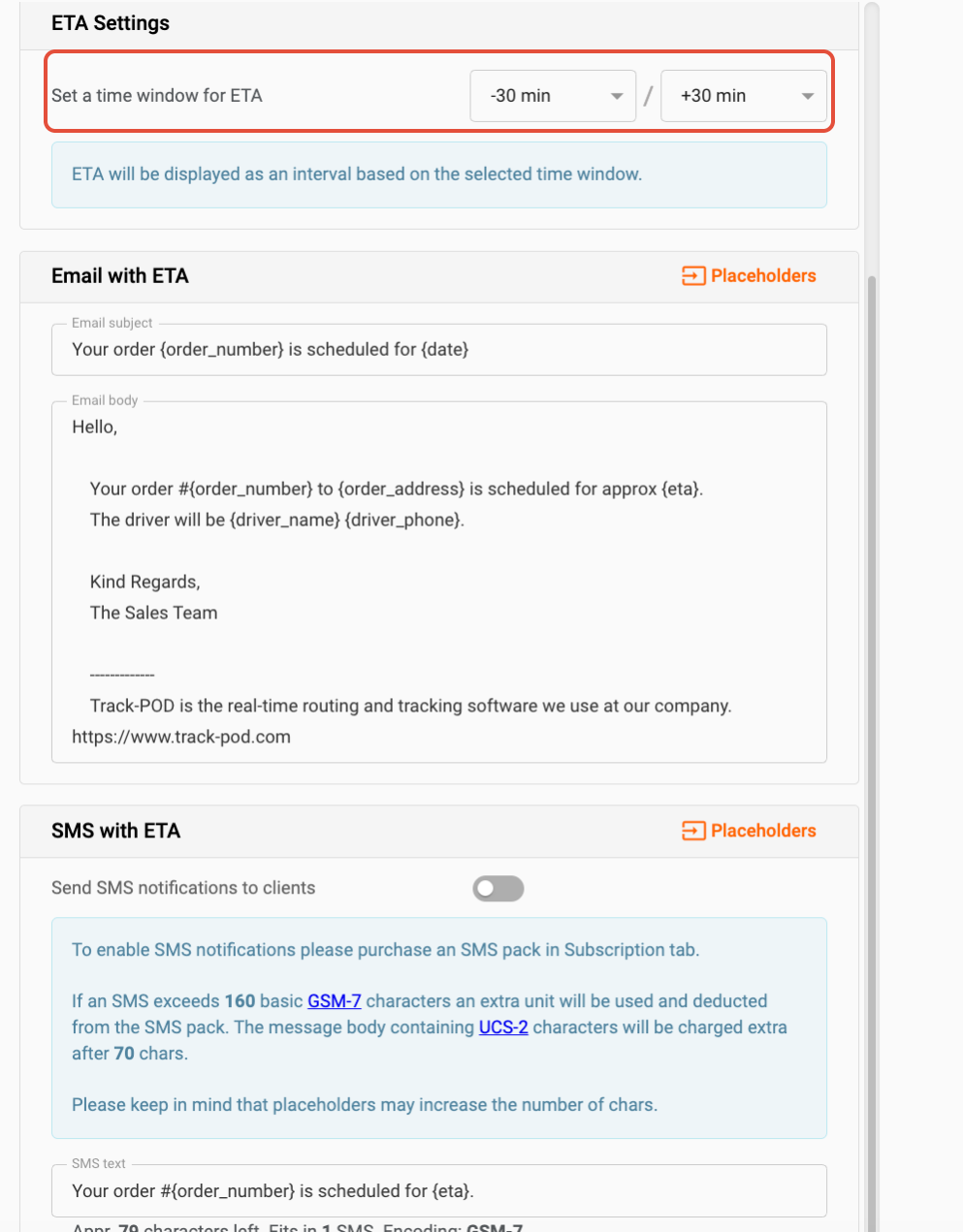
To enhance the customer experience, remember to set up the ETA interval and personalize the notification message. Tailoring your messages can help build rapport with your customers and keep them informed about their deliveries.
By following these steps, you can effectively schedule Prior to Route notifications in Track-POD, ensuring that your customers are always in the loop regarding their deliveries. If you have any questions or need further assistance, feel free to reach out to our support team!
Was this article helpful?
That’s Great!
Thank you for your feedback
Sorry! We couldn't be helpful
Thank you for your feedback
Feedback sent
We appreciate your effort and will try to fix the article