Welcome to our Orders Overview! With the new Orders tab, managing your orders has never been easier. This feature allows you to filter, group, and analyze order-related data efficiently, with the added benefit of exporting your results in a report format. Here’s how to make the most of this powerful tool.
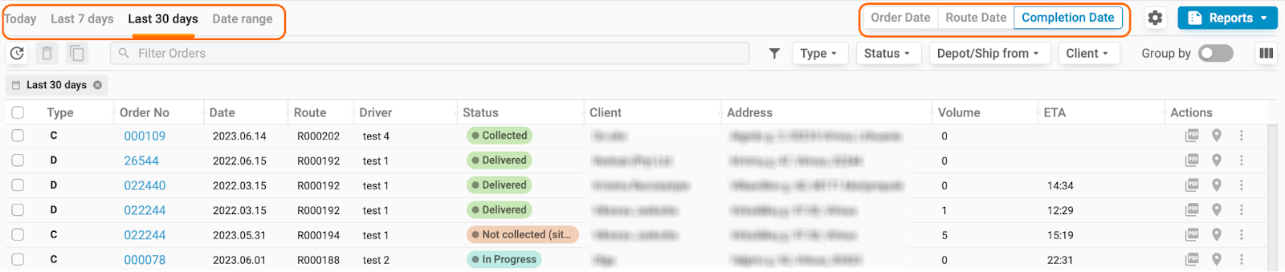
Step 1: Select Your Date Range
To begin, choose the date range for the orders you wish to display. You can select from predefined options like "Today," "Last 7 days," or "Last 30 days." Alternatively, you can specify exact dates to narrow down your search. Additionally, you have the flexibility to choose which date type you want to display: the Order Date (the delivery or collection date stated in the order), the Route Date, or the Order Completion Date. This customization ensures you see the data that matters most to you.
Step 2: Arrange Your Data
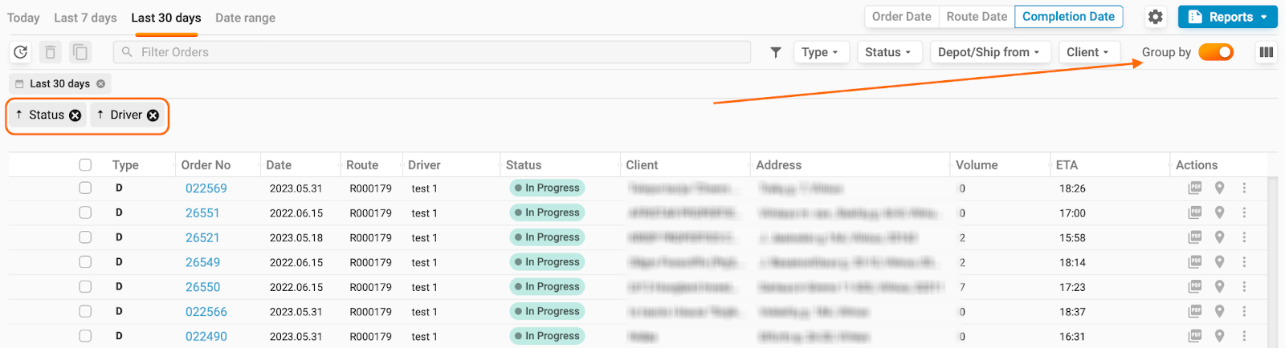
Next, it’s time to customize how your data is presented. You can enable the "Group by" feature by toggling the switch on. Simply drag and drop a column header to group orders by that specific column. For example, you might group deliveries by Status and Driver, making it easier to track performance and manage resources.
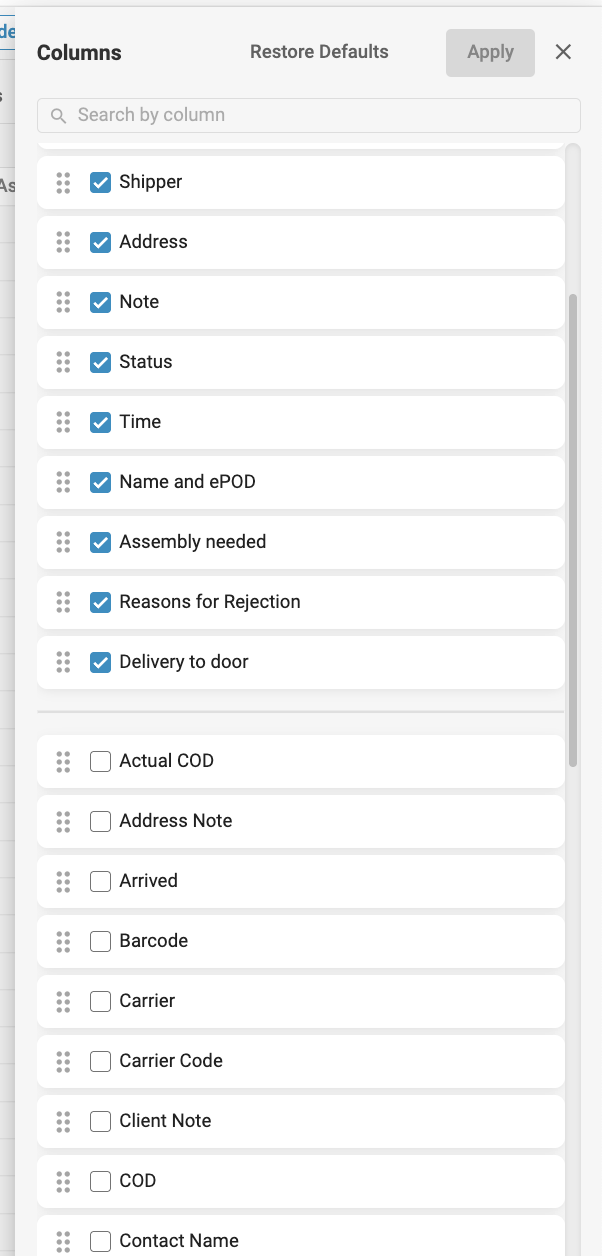
You can also add or remove columns to focus on the details that are most relevant to your current needs. This flexibility allows you to tailor the view to your specific requirements.
Step 3: Filter and Search
To further refine your data, utilize the various filtering options available. You can filter deliveries by different criteria using the Filter Order field or the built-in filters. Additionally, if you need to find a specific order quickly, you can easily search for orders by their unique order number.

Step 4: Export Reports
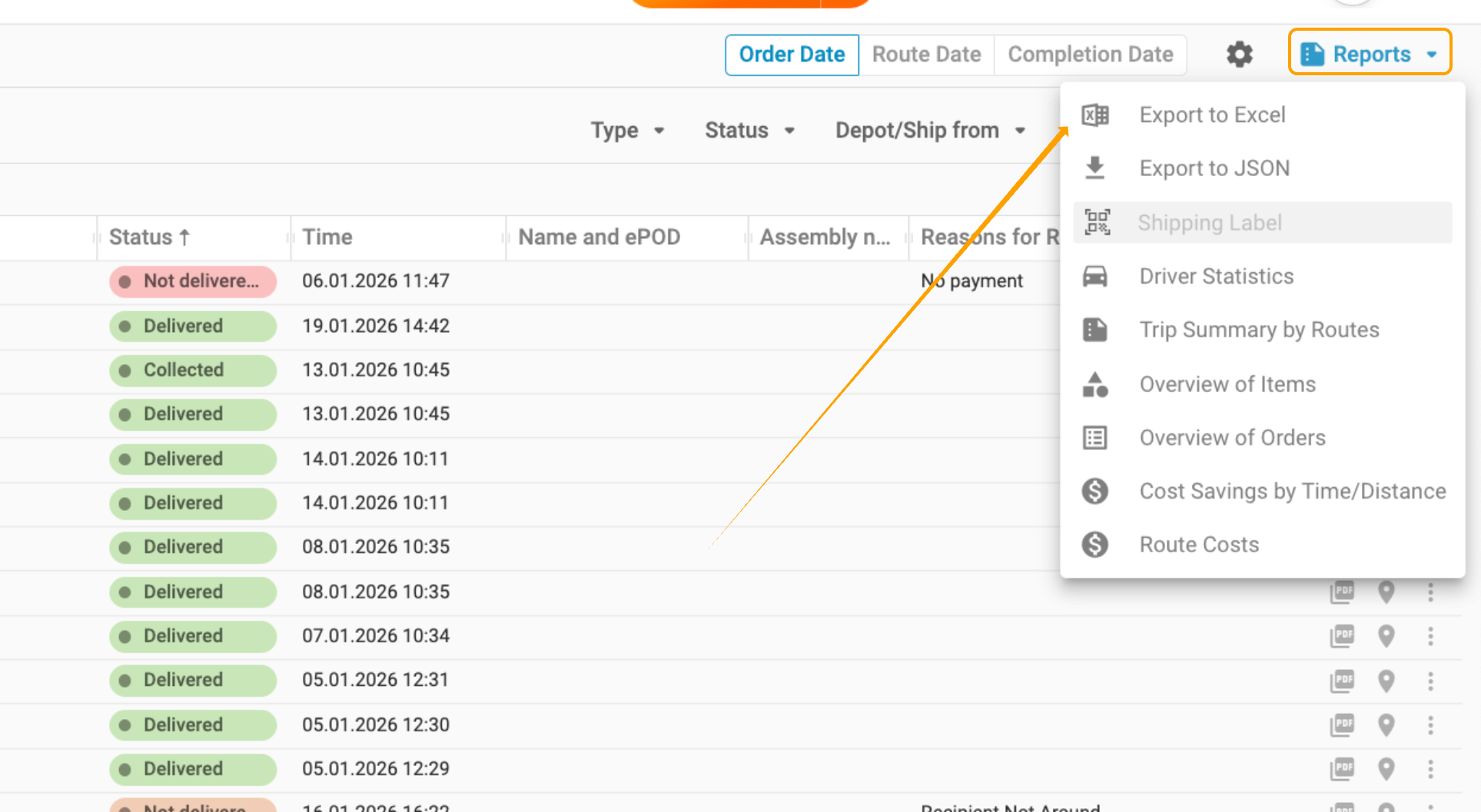
Once you have your data organized, you can export your report to Excel or JSON format by clicking on the Reports button located in the upper right corner. If your subscription includes this feature, you’ll also have access to inbuilt reports that can provide further insights.
We hope this guide helps you navigate the new Orders tab with ease. If you have any further questions or need assistance, feel free to reach out to our support team!
Was this article helpful?
That’s Great!
Thank you for your feedback
Sorry! We couldn't be helpful
Thank you for your feedback
Feedback sent
We appreciate your effort and will try to fix the article