Tracking your delivery has never been easier! Our Order View feature allows you to keep tabs on your deliveries and collections seamlessly. Follow these simple steps to track your order effectively.
Step 1: Access Your Orders
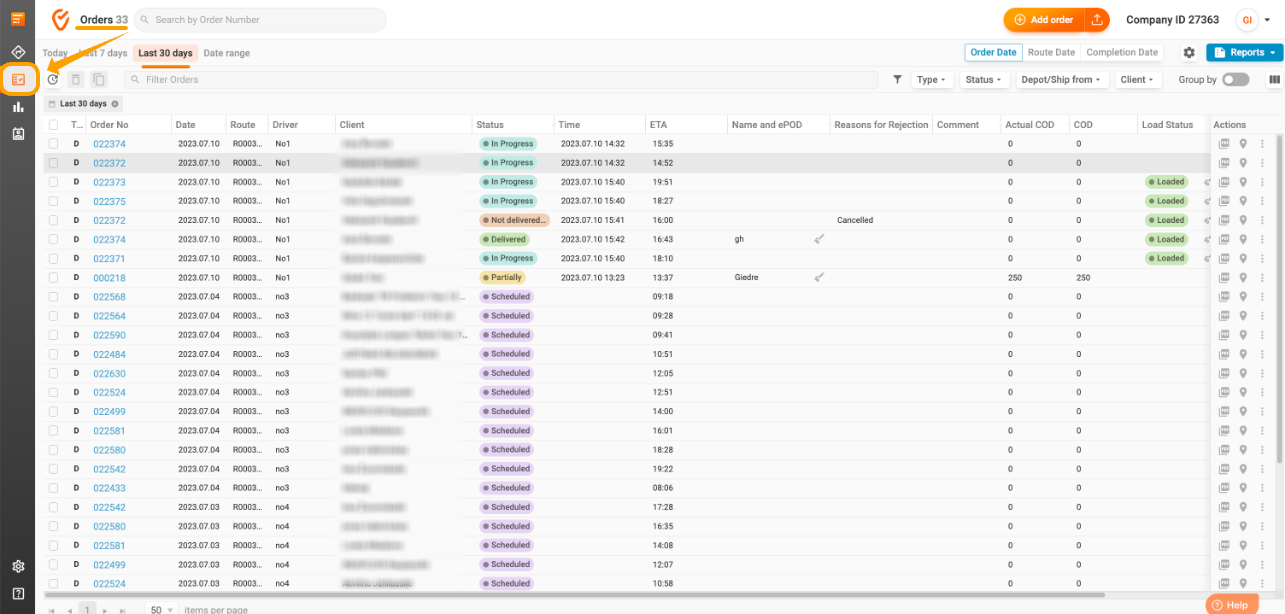
To begin tracking your delivery, navigate to the "Orders" section of our web app. For a more convenient experience, you can also open this window in a new tab. Once you’re in the Orders section, you’ll notice an option to adjust the date range. By selecting the specific dates you are interested in, you will see a comprehensive list of all your deliveries and collections that fall within that timeframe. This feature helps you quickly locate past and upcoming orders, making it easier to manage your deliveries.
Step 2: Search for Your Delivery
If you’re looking for a specific delivery, you can utilize the search panel located at the top of the Orders page. Simply enter the delivery number, or you can search using the client’s name or the delivery address. This will filter the results to show you the exact order you’re looking for. Once you find it, you can view the status and other relevant information, such as estimated delivery time and tracking updates. This ensures you are always informed about the whereabouts of your package.

Step 3: Use the Status Filter
To refine your search even further, consider enabling the Status filter. This feature allows you to categorize your deliveries and collections based on their current status, such as "Scheduled," "In Progress", "Delivered", or "Not Delivered", etc. By applying this filter, you can quickly generate a list of orders that meet your criteria, making it easier to manage multiple deliveries at once. This is especially useful during busy periods when you have several orders to keep track of.
By following these steps, you can easily track and trace your deliveries, ensuring you stay updated every step of the way. If you have any further questions or need assistance, feel free to reach out to our customer support team!
Was this article helpful?
That’s Great!
Thank you for your feedback
Sorry! We couldn't be helpful
Thank you for your feedback
Feedback sent
We appreciate your effort and will try to fix the article