Setting up ePOD (Electronic Proof of Delivery) notifications for shippers is a straightforward process that ensures your shippers receive timely updates once orders are delivered to end customers. Follow the steps below to configure these notifications effectively.
Step 1: Access the Shippers Directory
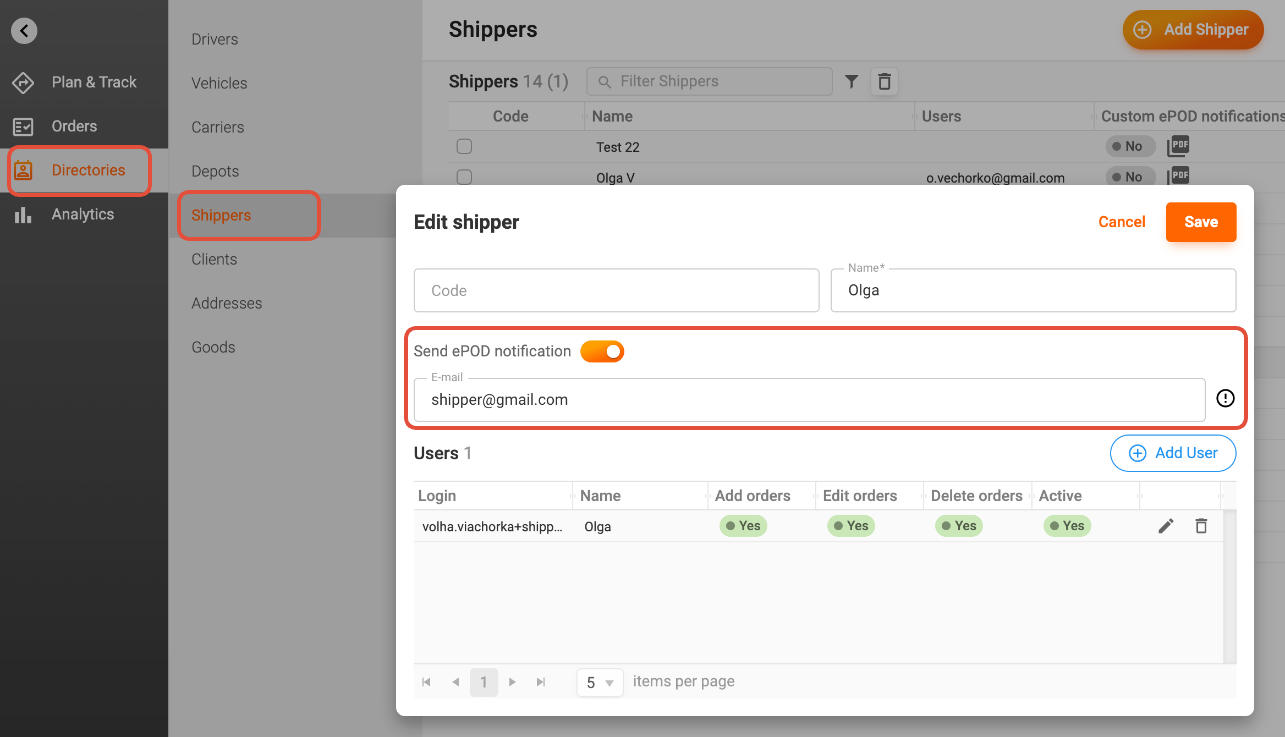
Begin by navigating to the Directories section of your platform. From there, select Shippers. This area contains all your current shipper entries, allowing you to manage their settings easily.
Step 2: Add or Edit a Shipper Entry
You have the option to either add a new shipper or edit an existing one. To add a new entry, click on the New Item button. If you wish to modify an existing shipper, simply select the shipper you want to edit and click on the Edit Item option.
Step 3: Enable ePOD Notifications
In the New Item or Edit Item window, you will find the option to send ePOD notifications. Tick the box labeled Send ePOD notification. This step is crucial as it activates the notification feature for the selected shipper.
Step 4: Enter the Email Address
Next, enter the appropriate email address where the ePOD notifications will be sent. It’s important to note that this email address can be different from the one used for logging into the Track-POD Customer Portal. Ensure that the email entered is accurate to avoid any delivery issues.
Step 5: Save Your Changes
Once you have completed the above steps, click the Save button to save your data and close the window. This action confirms that your settings are updated and ready to go.
Step 6: Customize ePOD Notifications (Optional)
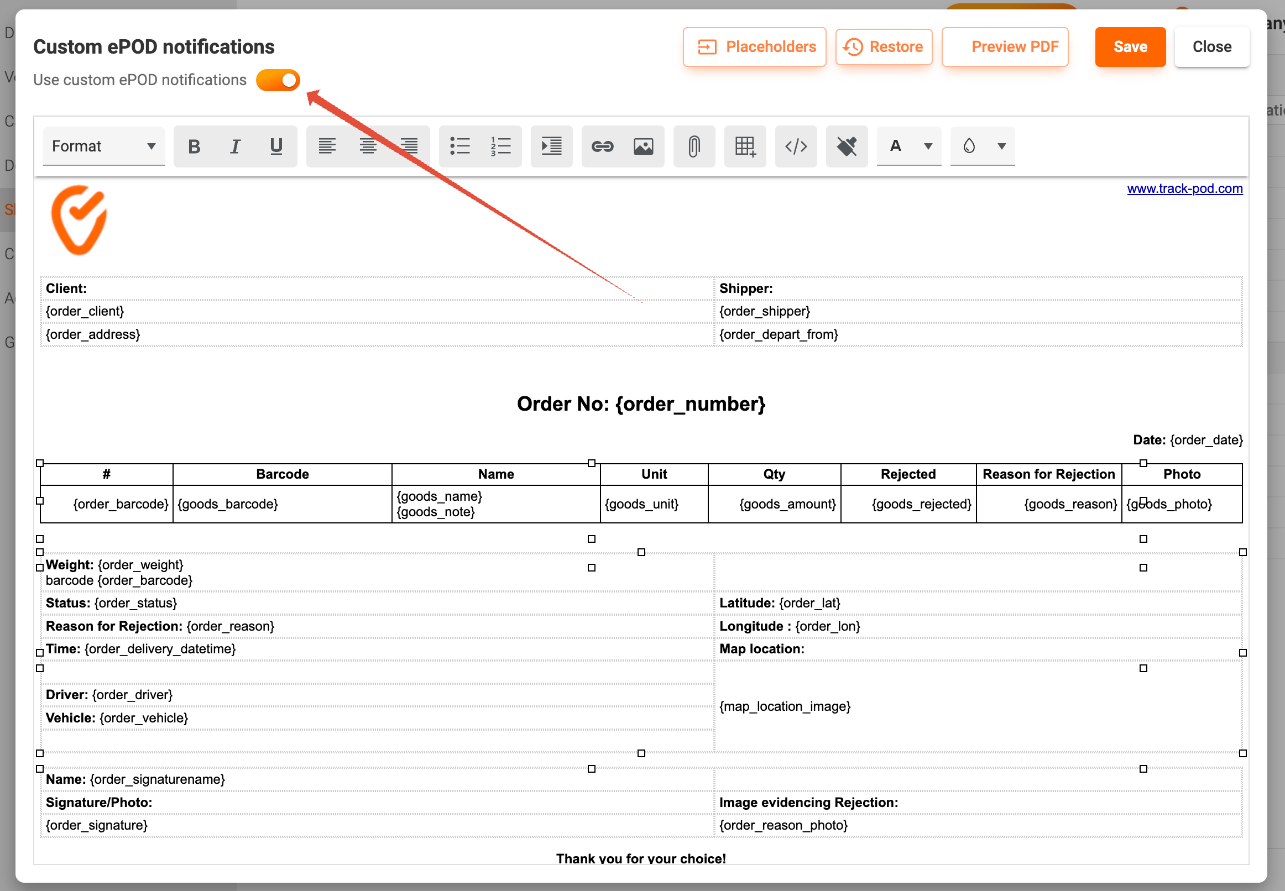
If desired, you can customize the ePOD notifications to better suit your shippers’ needs. This may include adjusting the content or format of the notifications sent. Make sure you toggle on Use custom ePOD notifications for the custom template to be used, otherwise a default template from Settings -> Notifications will be used.
Conclusion
With these simple steps, ePODs will now be sent out to your shippers according to the ePOD Notifications settings you have configured. This feature not only streamlines communication but also enhances the overall delivery experience for both shippers and end customers. If you have any further questions or need assistance, feel free to reach out to our customer support team!
Was this article helpful?
That’s Great!
Thank you for your feedback
Sorry! We couldn't be helpful
Thank you for your feedback
Feedback sent
We appreciate your effort and will try to fix the article