Welcome to the Track-POD Customer 3PL Portal! This article will guide you through the process of creating an account for your shipper and placing and tracking orders as a shipper. With our user-friendly interface, managing your shipping needs has never been easier. If you are an account web-user feel free to share this article with your customers.
Creating Accounts for Shippers
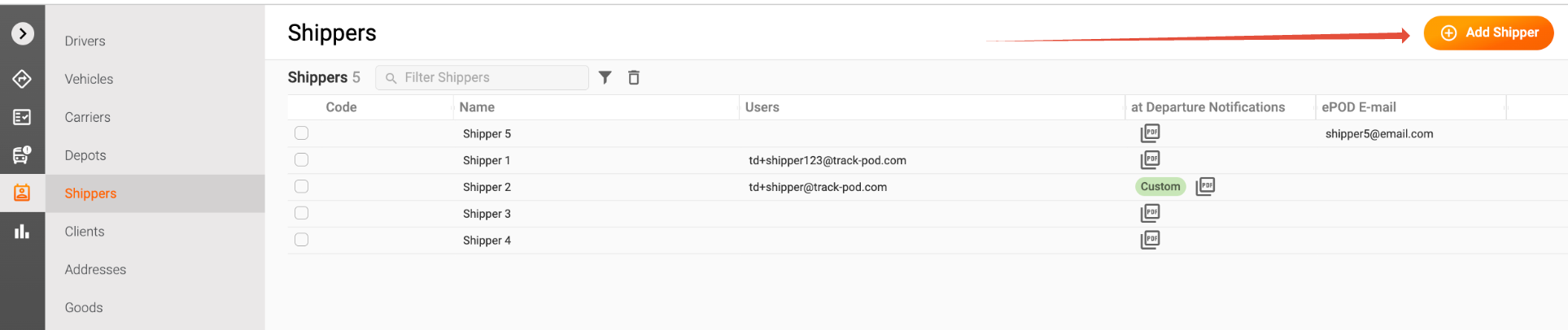
To start, you can create accounts for verified shippers and customers, granting them access to the Track-POD Customer 3PL Portal. This allows your customers to add, track, and print shipping labels for their orders, as well as view electronic Proof of Delivery (ePODs).
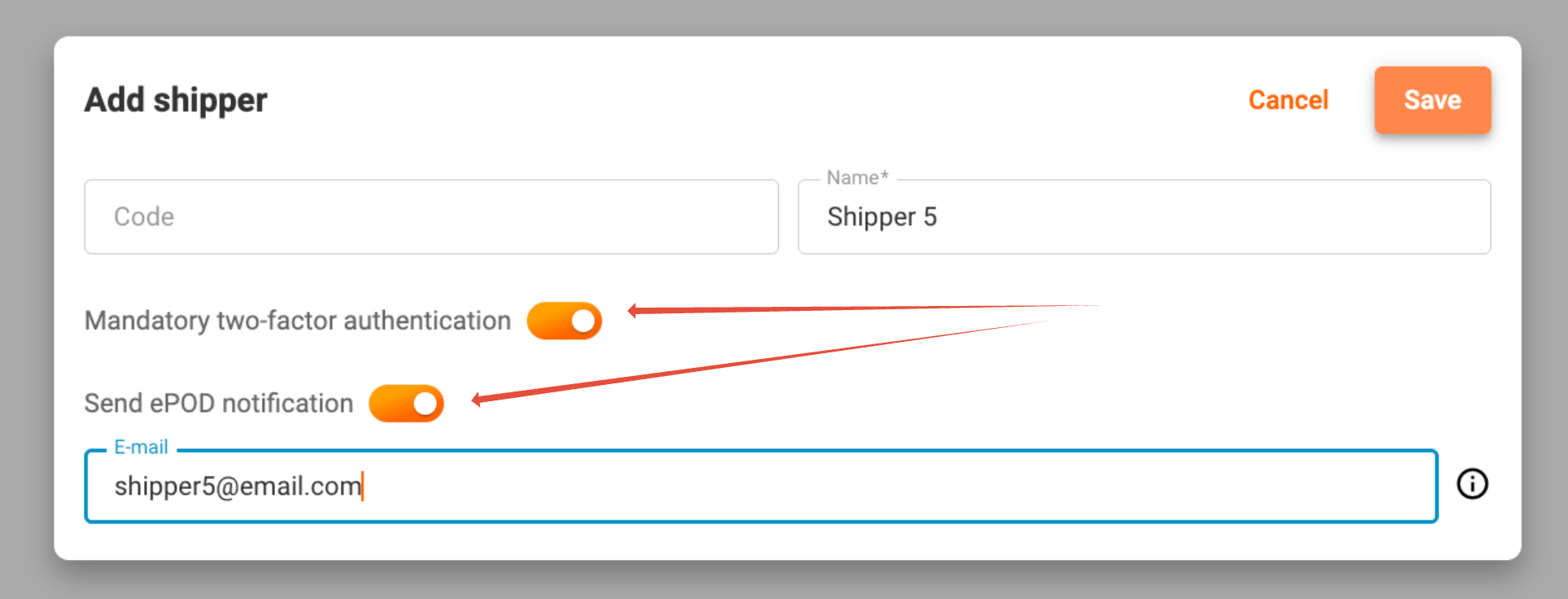
1. Create a New Shipper by inputting the customer's name and determining if Two Factor Authentication is necessary for every user linked to this shipper. Additionally, you can activate the option to send ePODs straight to the shipper's email by selecting Send ePOD notification and entering the corresponding email address. Note that you can customize the PDF template per Shipper
2. Set Access Permissions: after saving a newly created entry click Edit to reopen the window and to determine the shippers' access to your directories by checking the appropriate boxes. You can allow access to all goods or restrict it to only those entered by the shipper. Additionally, decide whether they can access the whole client and address database or only those addresses related to the shipper's business. You may also want to limit the shipper's possibility to access Live tracking link column.
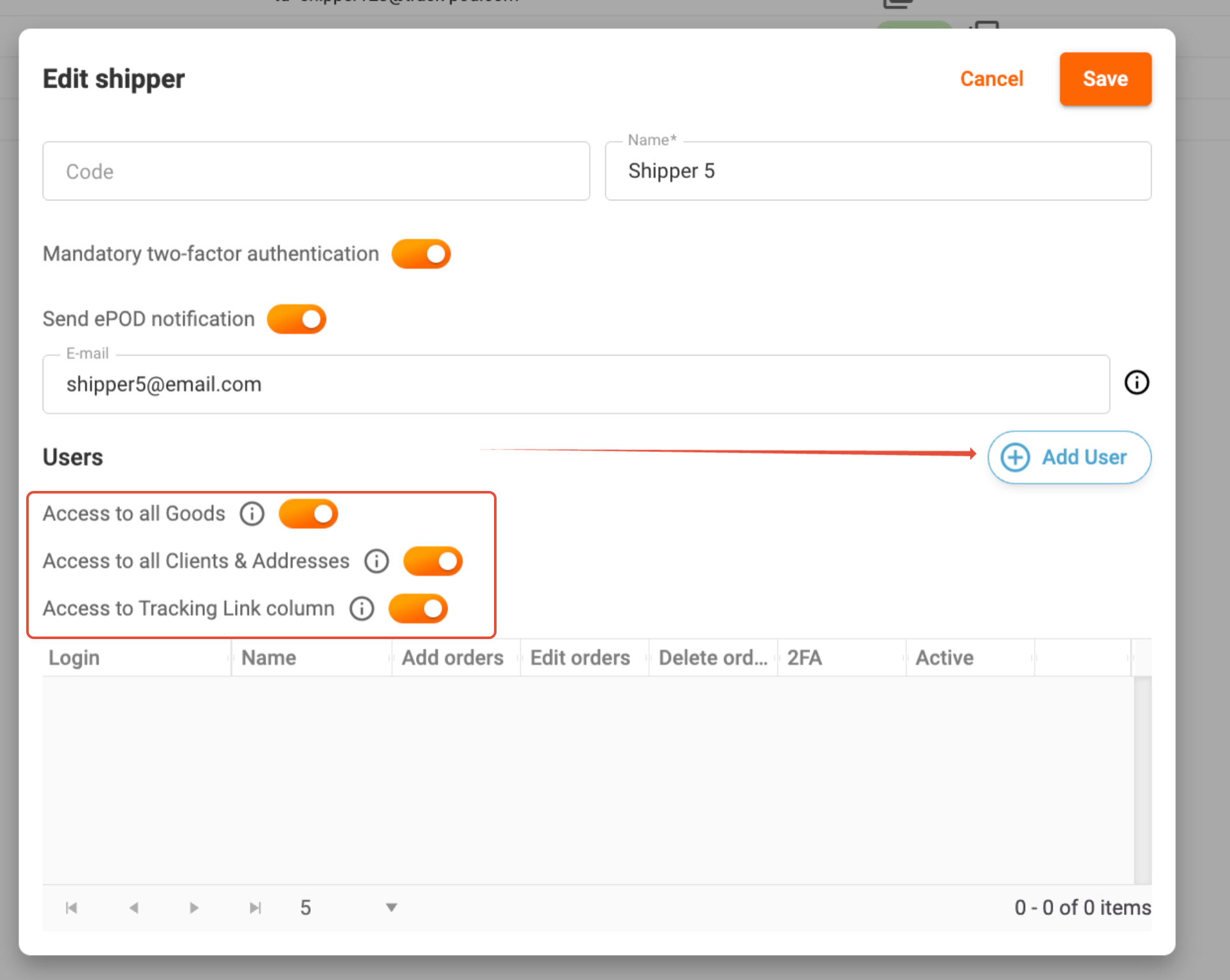
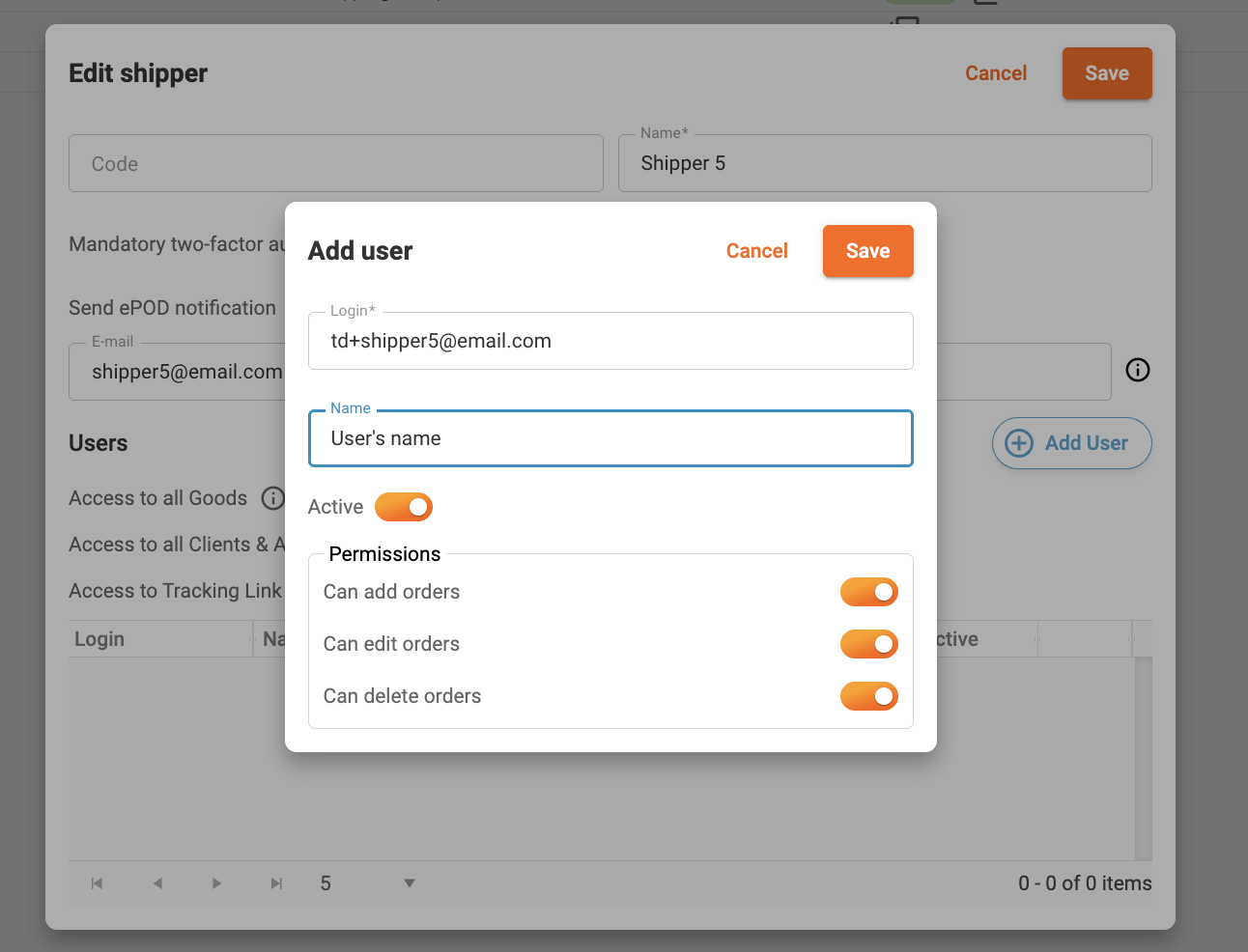
4. Add User: Select Add User to set up user accounts for the individuals who will manage the shipper's account on behalf of your customer. Manage the user's permissions to add, edit, delete orders in 3PL Portal. Once you click Save an invite will be sent to the login email. Please ask the user to check their email and accept the invite and start placing and tracking their orders in the Portal.
Placing Orders in 3 PL Customer portal
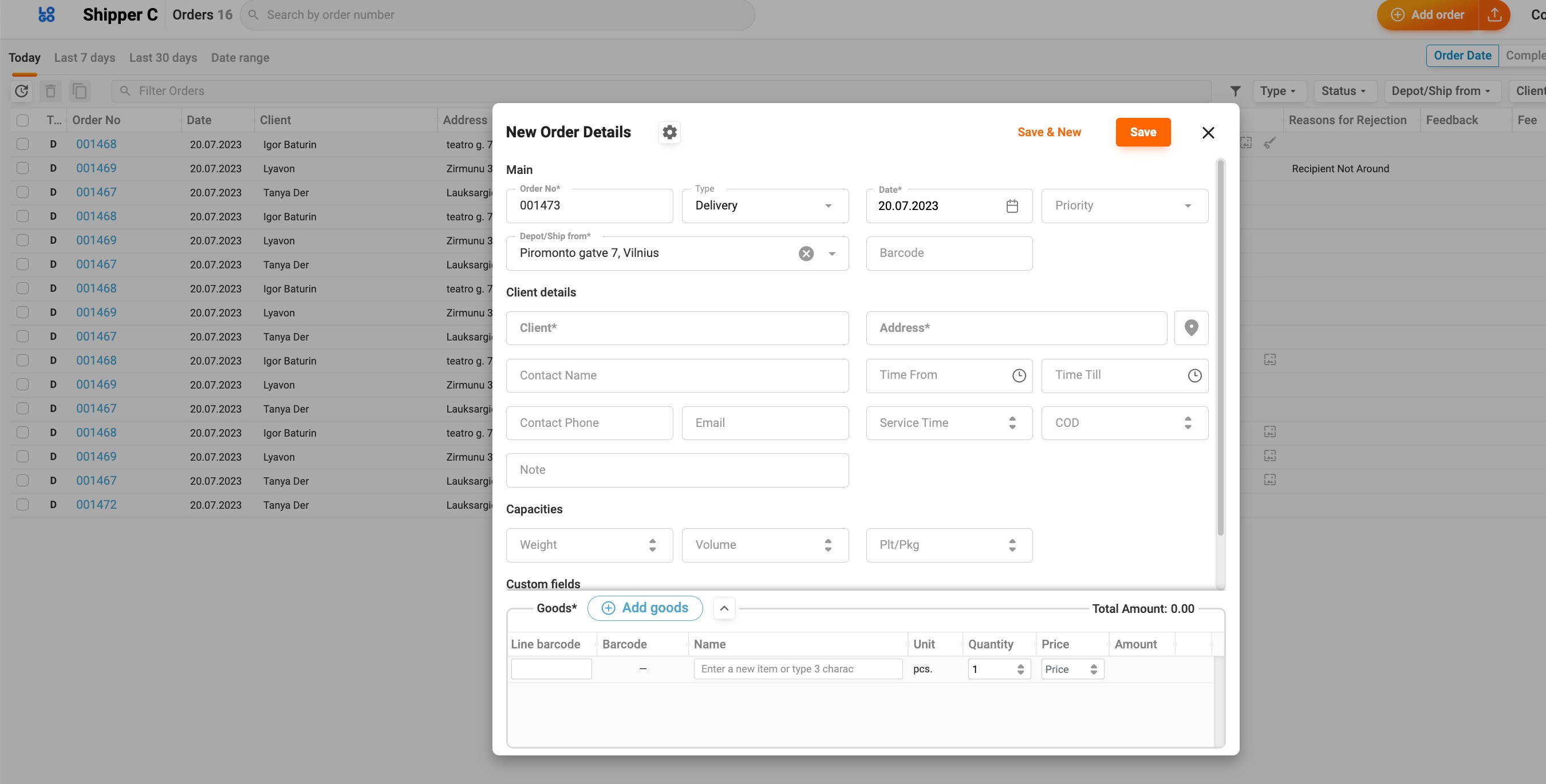
Once logged into their Track-POD dashboard which looks pretty much the same as the main account Orders tab, shippers can easily manage their orders. They can add, import, edit, or delete orders, as well as download and print shipping labels. Any order created in the shipper's account will be visible in the Admin account under "Unscheduled Orders". Shipper can import orders from their Excel file or create jobs manually with the Add Order button.
Tracking Orders and Accessing ePODs
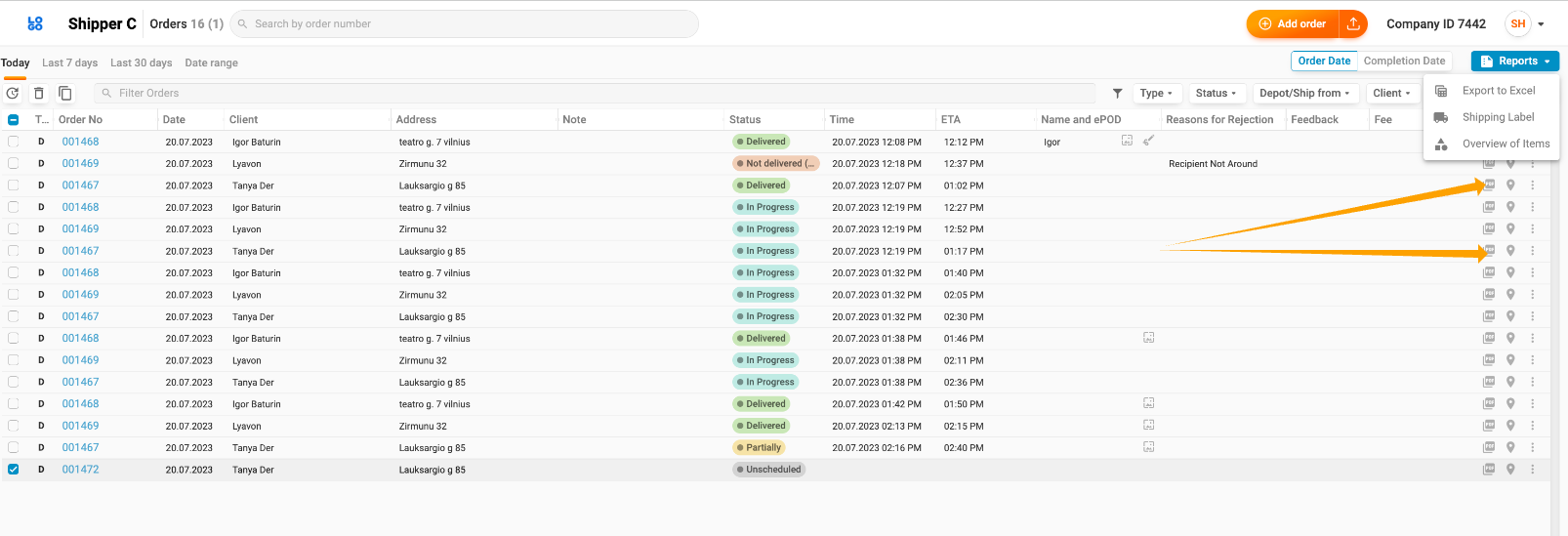
After orders are delivered, shippers can view and download ePODs in PDF format. If you are on the Ultimate Subscription plan, you can also customize email notifications according to each shipper’s preferences.
Printing Shipping Labels
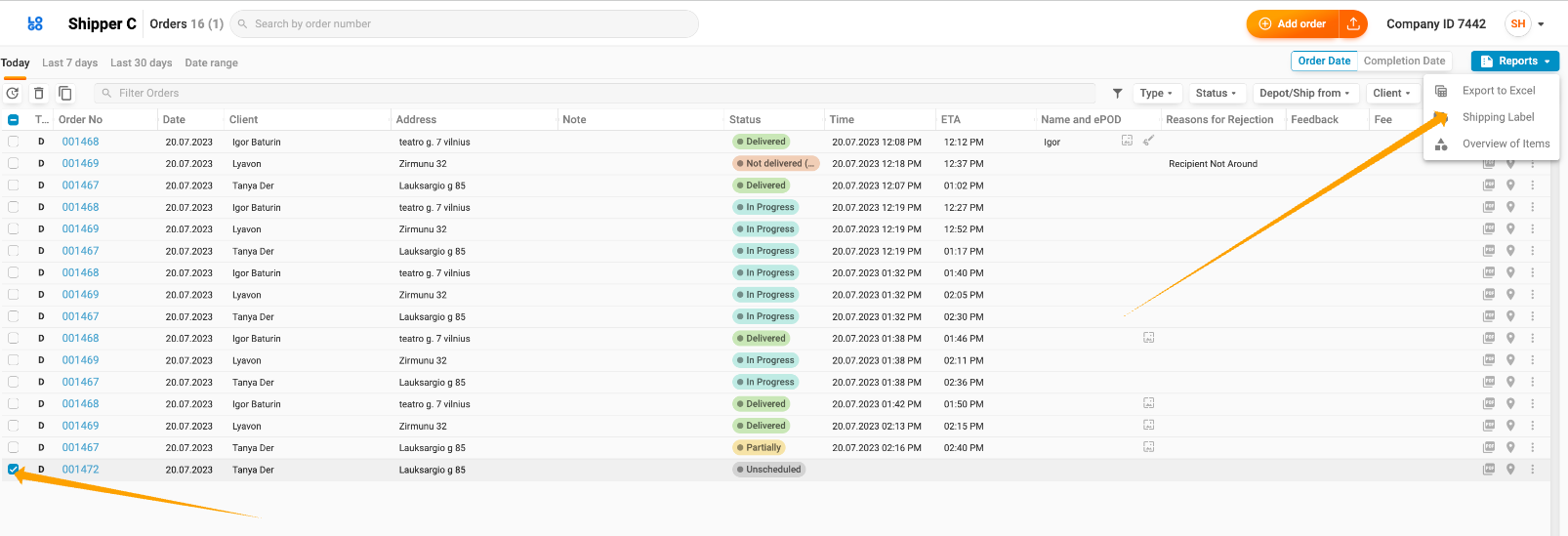
To print a shipping label, a user shall select the required order(s), then navigate to Reports -> Shipping Label in the dropdown menu. The shipping labels will open in a new tab, and can be either printed out or saved as PDF.
Managing Orders
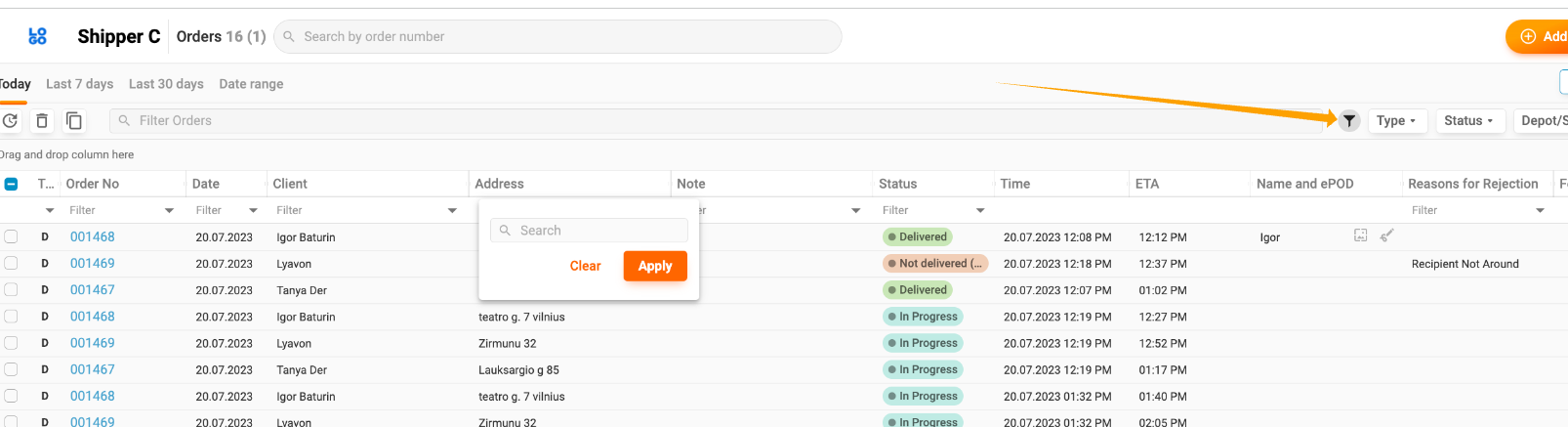
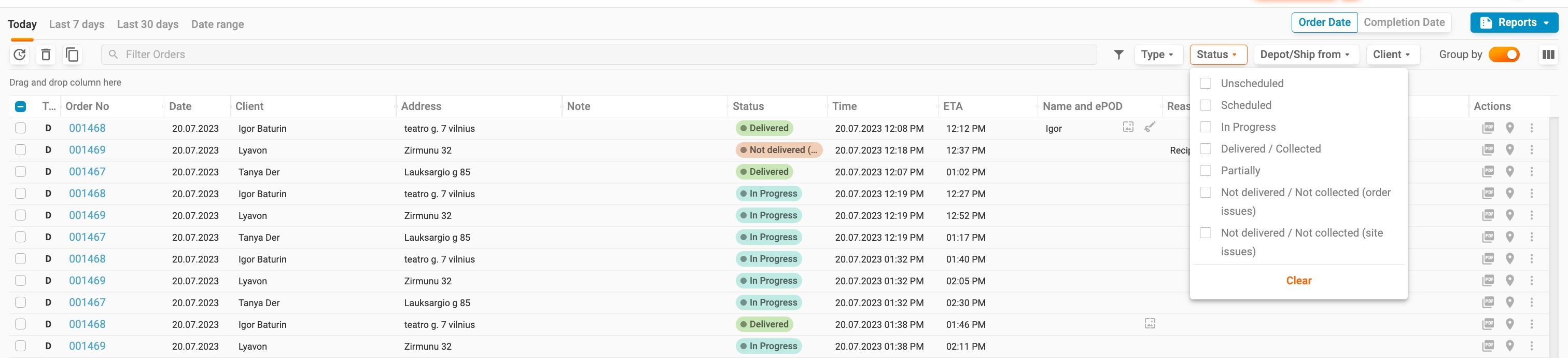
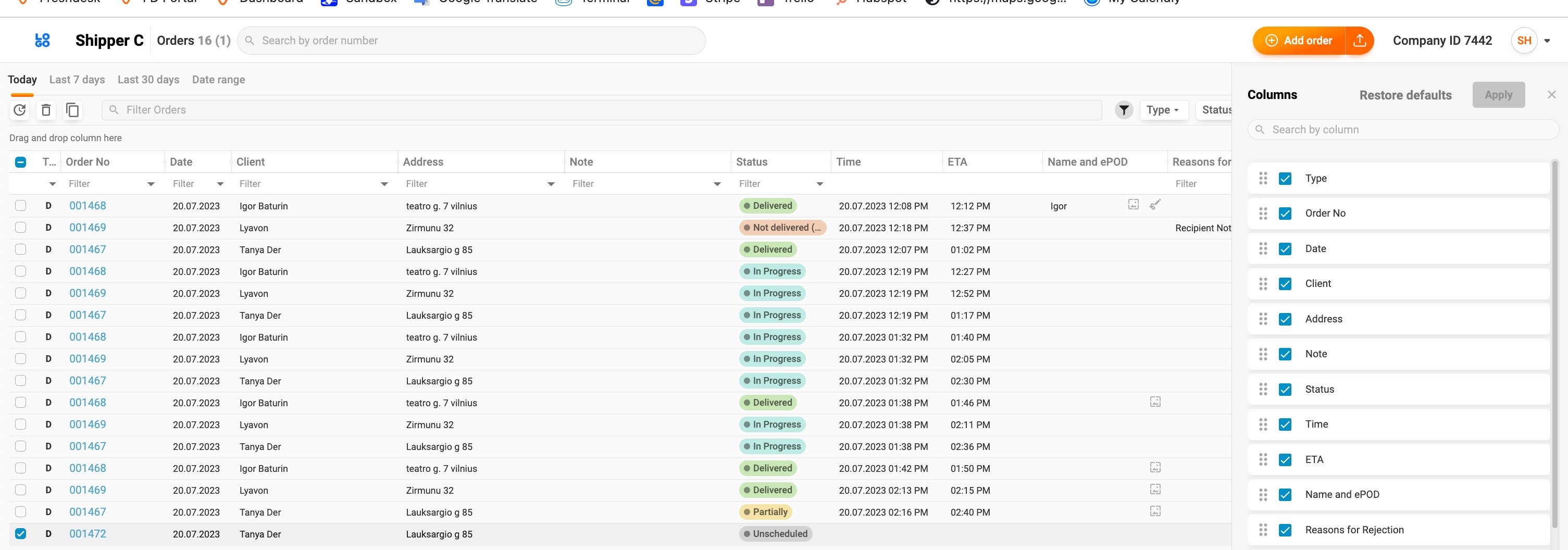
In the Track-POD Customer portal, shippers can efficiently manage their orders by filtering, grouping, and customizing the view of columns. For example, they can filter orders by date range, type, status, depot, or client using the relevant buttons. Additionally, the column layout is customizable, enabling users to disable irrelevant columns for a more streamlined experience.
With these steps, shippers can seamlessly place and track their orders within the Track-POD Customer 3PL Portal, making shipping management straightforward and efficient. If you have any questions or need further assistance, feel free to reach out to our customer support team!
Was this article helpful?
That’s Great!
Thank you for your feedback
Sorry! We couldn't be helpful
Thank you for your feedback
Feedback sent
We appreciate your effort and will try to fix the article