This comprehensive guide provides detailed instructions on how to effectively integrate Square Point of Sale (POS) with the Track-POD mobile application by utilizing Square’s POS API, ensuring a seamless connection between the two platforms for enhanced operational efficiency.
Prerequisites
Active Square account
Square POS app installed on the driver’s phone
Driver is logged into the correct Square account
Step 1: Register Your Application in Square
For iOS
Go to: Square Developer → Point of Sale API (iOS)
Complete Step 2: Register your application
Enter:
Bundle ID:
com.trackpod.tpURL Scheme:
trackpod
For Android
Go to: Square Developer → Point of Sale API (Android)
Complete Step 2: Register your application
Enter:
Package Name:
com.pt.msSHA-1 Fingerprint:
78:46:BC:EB:70:3F:DF:E4:CC:39:2F:27:0C:71:9D:1B:F4:AC:F4:9A
Step 2: Get Your Application ID
Open your Square Developer Dashboard
Copy your Application ID
Step 3: Add Application ID to Track-POD
Go to Track-POD Settings
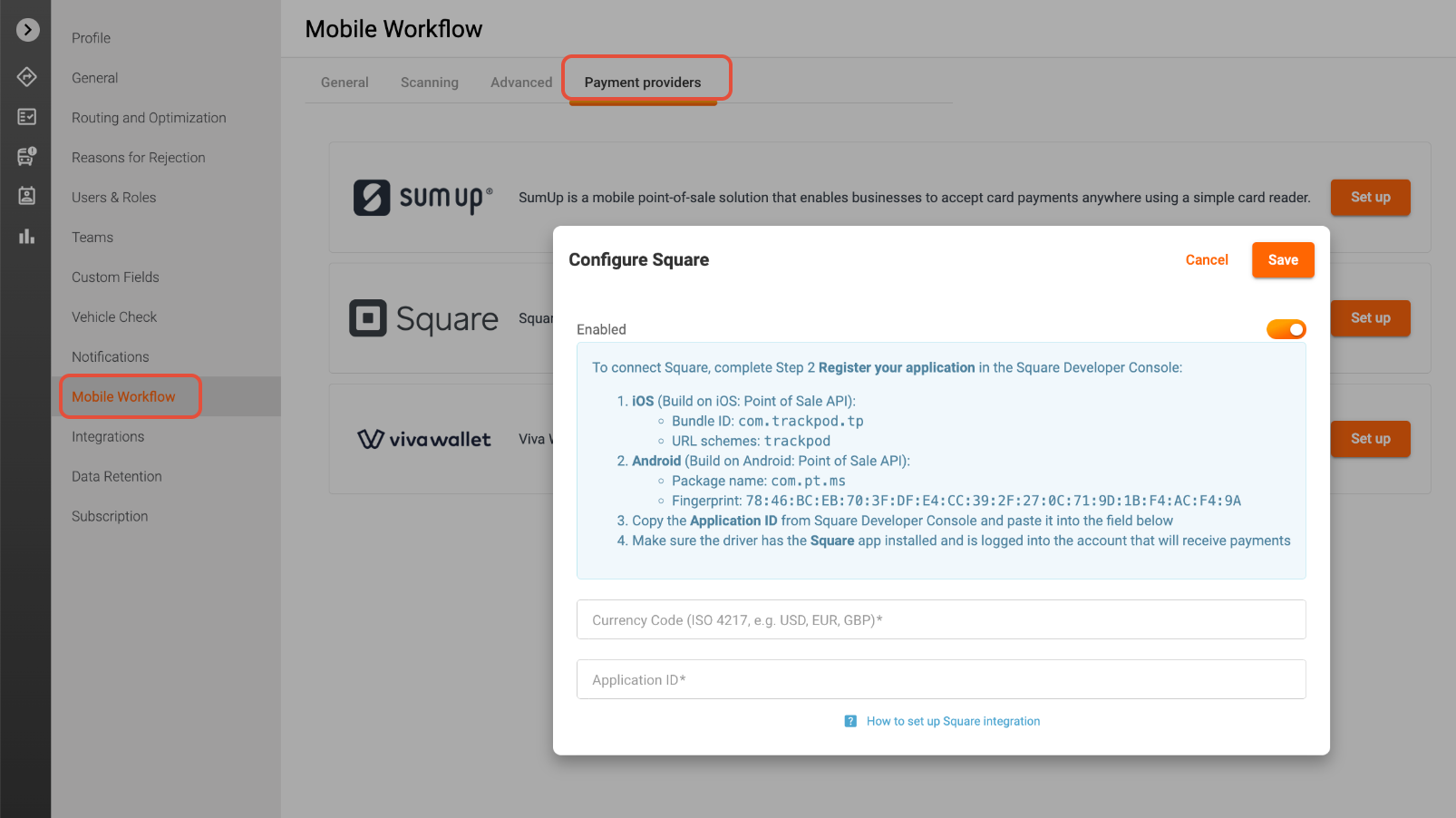
Navigate to Mobile Workflow → Payment Providers
Select Square and click Set up
Paste the Application ID and the currency code in the open window
Save changes
Step 4: Configure Driver Device
On the driver’s phone:
Install the Square POS app
Log in with the merchant account
Ensure payments are enabled and configured
Step 5: Test the Integration
Create a test order
Start payment from Track-POD
Confirm that the Square app opens and completes the transaction
Notes
Track-POD redirects to the Square app for payment processing
Ensure correct configuration of Bundle ID / Package Name to avoid errors
Was this article helpful?
That’s Great!
Thank you for your feedback
Sorry! We couldn't be helpful
Thank you for your feedback
Feedback sent
We appreciate your effort and will try to fix the article