Upgrading or downgrading your subscription with Track-POD is a straightforward process that takes just a few minutes. Whether you want to take advantage of more features by upgrading or need to reduce your costs by downgrading, we’ve got you covered. Follow the steps below to manage your subscription effectively.
Step 1: Access Your Subscription Settings
Begin by navigating to the Settings tab in your Track-POD account. From there, select Subscription. This section provides you with all the details regarding your current pricing plan, including the features you have access to and the number of licenses you are currently using.
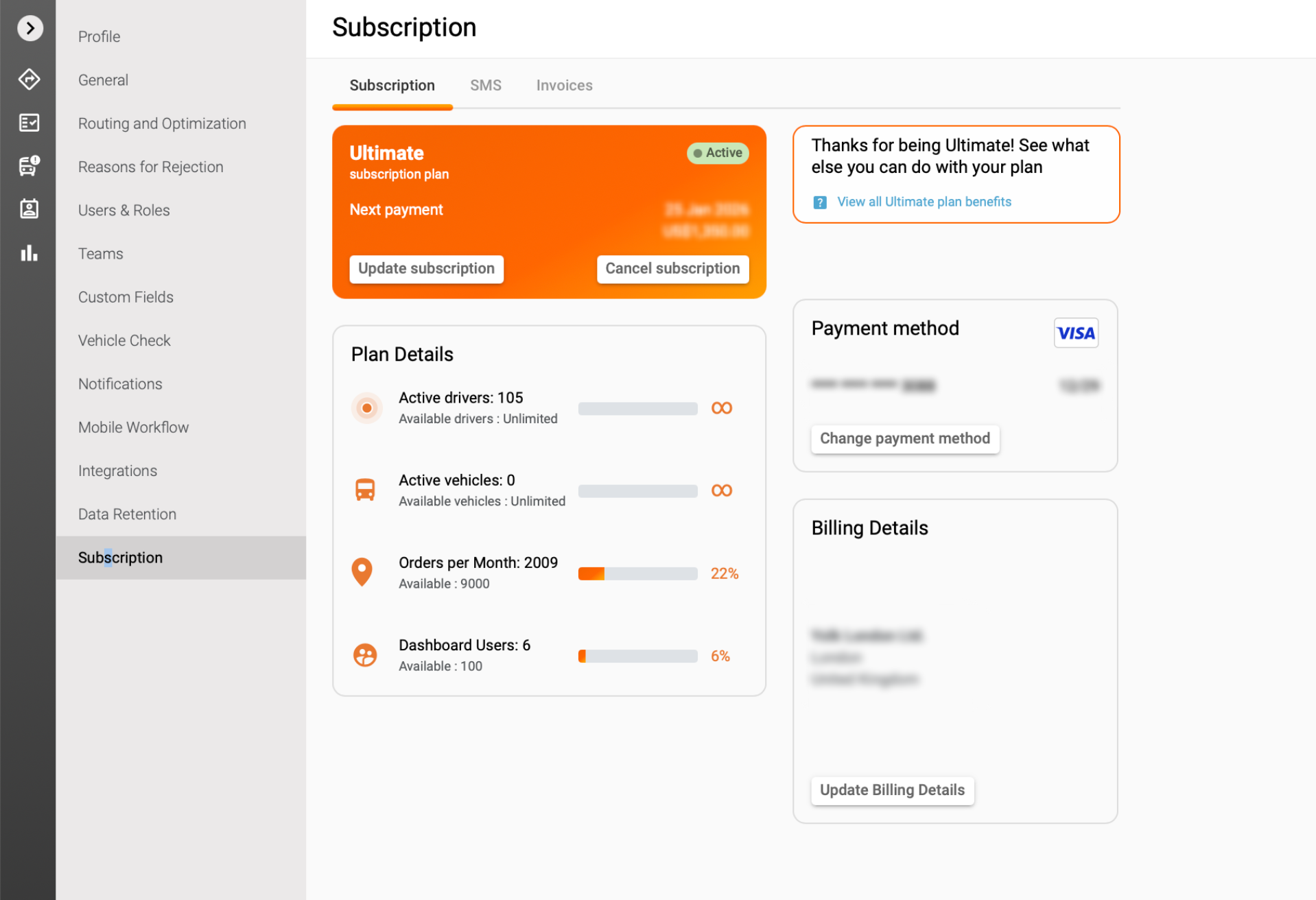
Step 2a: Upgrading Your Subscription
To upgrade your subscription, click on the Update Subscription button. A pop-up window labeled Select a Subscription Plan will appear. Here, you can choose the pricing plan you wish to upgrade to and specify the number of drivers you need.
Once you’ve made your selections, click the Update Subscription button and confirm your choice in the dialogue window that appears.
Step 2b: Downgrading Your Subscription
If you decide to downgrade your subscription, the process is equally simple. Select the number of drivers you want and the desired subscription plan. After making your selections, click the Update Subscription button and confirm your action in the pop-up window.
Finalizing Your Changes
Once you’ve completed either the upgrade or downgrade, the system will automatically calculate your total based on the options you selected. Your pricing plan will be updated immediately.
Important Notes:
- In the case of an upgrade, you will be charged the difference between your new plan and the unused portion of your previous plan.
- For downgrades, changes will take effect immediately, but please note that the difference between the plans will not be credited back to your account.
If you have any questions or need further assistance, feel free to reach out to our customer support team. We’re here to help you make the most of your Track-POD experience!
Was this article helpful?
That’s Great!
Thank you for your feedback
Sorry! We couldn't be helpful
Thank you for your feedback
Feedback sent
We appreciate your effort and will try to fix the article